Screen guide
The walk-in form
At a glance
- Purpose
- Book a room for a guest who is at the desk now, register them and check them in in one step.
- Who uses it
- Owner
- Manager
- Front desk
- Night audit
- Where to find it
- Today, Walk-in; the tape chart; the link in New booking; key W
The sheet for a guest with no booking: stay, room, guest and payment on one page, so the guest is booked and checked in at once.
The screen
Section titled “The screen”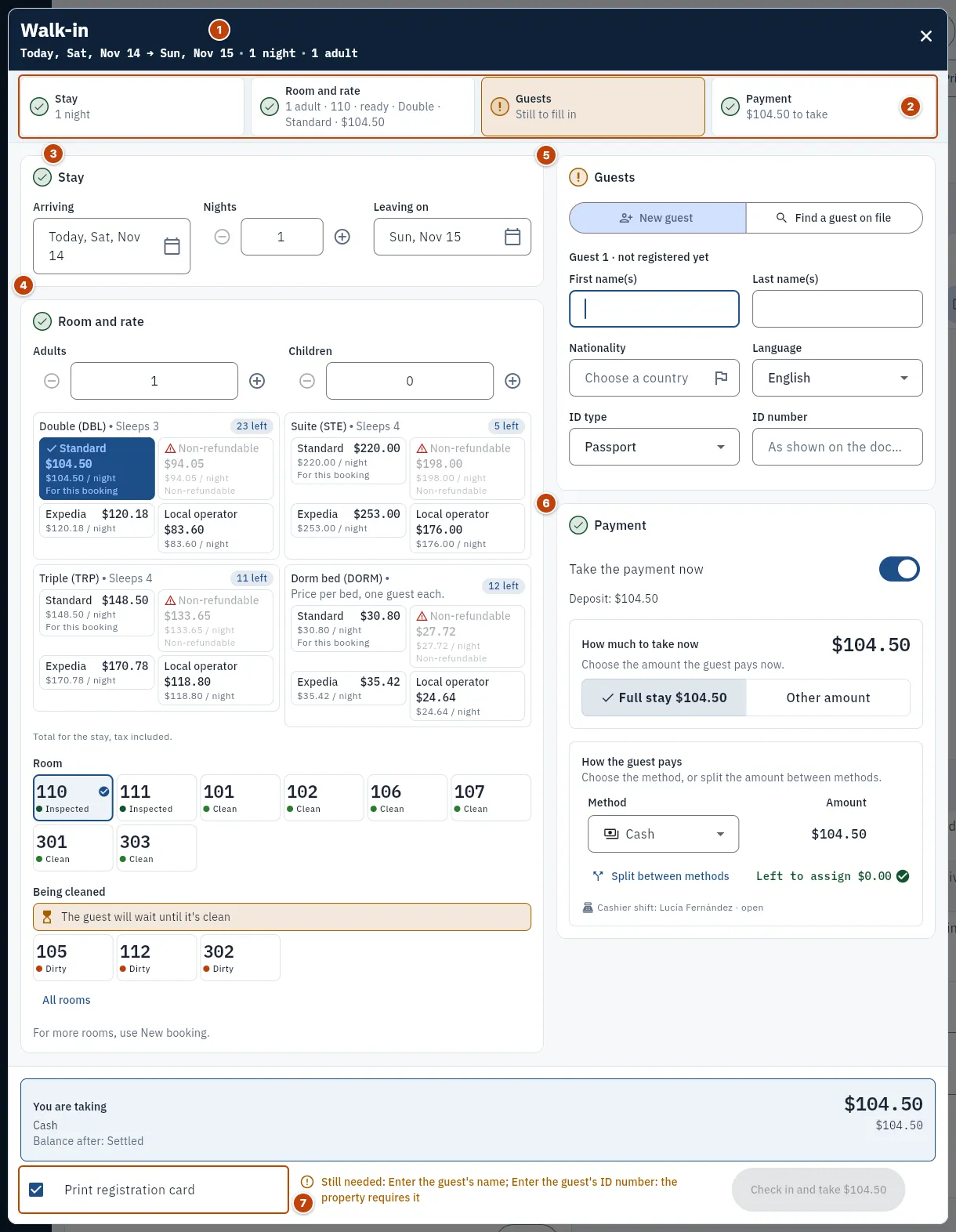
Parts of the screen
Section titled “Parts of the screen”- Header: the title Walk-in, then today’s date to the leaving day, the nights and the adults. It follows what you choose below.
- Steps bar: one cell for each section: Stay, Room and rate, Guests and Payment. Green check: done. Amber exclamation mark: needs attention. Tap a cell to jump to it.
- Stay: the arrival is today and cannot change. Set Nights with the stepper or pick Leaving on on the calendar. A walk-in can be up to 30 nights.
- Room and rate: set Adults and Children, pick a room type and tap a rate. The sheet shows the rooms free for these nights and has already chosen the best ready one. Tap another under Room, or tap All rooms to see more. A room still being cleaned shows under Being cleaned.
- Guests: choose New guest and type the name, nationality and ID, or Find a guest on file so the guest is not entered twice. Companions go under Add the other guests (optional). A folded Registration details shows here only when your country pack requires more.
- Payment: the Take the payment now switch, then How much to take now and How the guest pays. Switch it off to check the guest in without taking money.
- Footer: Print registration card (ticked at first), what is still missing or “Ready”, and the main button. It reads Check in, or Check in and take with the amount.
Options and filters
Section titled “Options and filters”- All rooms and Best rooms first: show every free room, or only the best ones.
- Being cleaned: rooms not ready yet. The sheet never picks one for you. If you pick it, a note says “The guest will wait until it’s clean”, or “until it’s inspected” when your hotel checks guests in only to inspected rooms.
- Already on file?: as you type a name, guests who match are listed. Tap one to use them. Each match shows the phone, how many stays the guest has had, and a VIP tag or a block sign.
- Book anyway (override the rate’s restrictions): appears when a rate refuses your dates. Only an Owner or a Manager can tick it, and then Manager’s reason (required) asks why. For anyone else it is off and says “A manager checks this guest in.”
- Full stay, First night (only when it differs from the full stay) and Other amount: what to take now. The deposit your hotel requires is named when there is one.
Actions
Section titled “Actions”- Check in and Check in and take (Owner, Manager, Front desk, Night auditor): book, register and check in. Taking the payment on the same sheet also needs the permission to take payments, which these roles have.
- New guest, Find a guest on file and Change guest (Owner, Manager, Front desk, Night auditor): choose who the guest is.
- Book anyway (Owner, Manager): for a blacklisted guest on file. The sheet says “is blacklisted” with the reason and asks you to confirm.
- Add the other guests (optional): one row for each other guest. Rows without a name are ignored.
- Registration details: sex, country and region of residence, place and country of birth, the document’s issuer and dates, the purpose of the trip and, for companions, the role in the stay. Only the fields your country pack requires are there, with how many are “to fill in”. If it requires none, the section does not show.
- Take payment (Owner, Manager, Front desk, Night auditor): on the last view, when the stay is not fully paid.
- Print registration card and Share PDF: on the last view, to print the card for the guest to sign or to send it.
- Close: closes the sheet after the guest is in.
Colours, icons and badges
Section titled “Colours, icons and badges”- Green check in the steps bar: the section is done. Green “Ready”: the button is on.
- Amber note on a room: the guest will wait, because the room is being cleaned or waits for inspection.
- Red block sign: the guest on file is blacklisted.
- Red text under a field or a refusal at the top: the server said no. The sheet stays as you left it.
Phone and desktop
Section titled “Phone and desktop”- On a phone the sheet fills the screen. The sections follow one another in the order Stay, Room and rate, Guests, Payment. The steps bar scrolls sideways.
- From about 1000 px there are two columns: Stay and Room and rate on the left, Guests and Payment on the right.
- Keys: W opens the sheet from any screen when your role may (not while you type). Esc closes it.
Common questions
Section titled “Common questions”- Why don’t I see Walk-in on Today? It needs the permission to book and to check in. Ask a manager to check your role.
- Why does the sheet say no room can take a guest yet? The free rooms are still occupied by guests who are leaving. Check them out first, or wait.
- Why does it ask for a manager? Your hotel requires a deposit and the payment you set is less. A manager checks the guest in, with a reason.
- Can the guest stay more than 30 nights? Not here. Use New booking, and check the guest in when ready.
- Why does it say no payment method is switched on? Nothing is set up to take money. An Owner or a Manager sets it in Settings > Payments.