Screen guide
The company profile
At a glance
- Purpose
- Keep what the hotel needs to bill a company: its name and tax number, its billing contact, its credit limit and payment terms and, where the hotel invoices electronically, its Tax details.
- Who uses it
- Owner
- Manager
- Front desk
- Night audit
- Where to find it
- Folios, then the Companies tab. Tap Add company for a new one, or open the company's More actions and choose Edit company.
The window where you add a company that is billed on account, or change one: who it is, how to reach it, how much it may owe, how fast it pays and, where the hotel invoices electronically, who its invoices are made out to.
The screen
Section titled “The screen”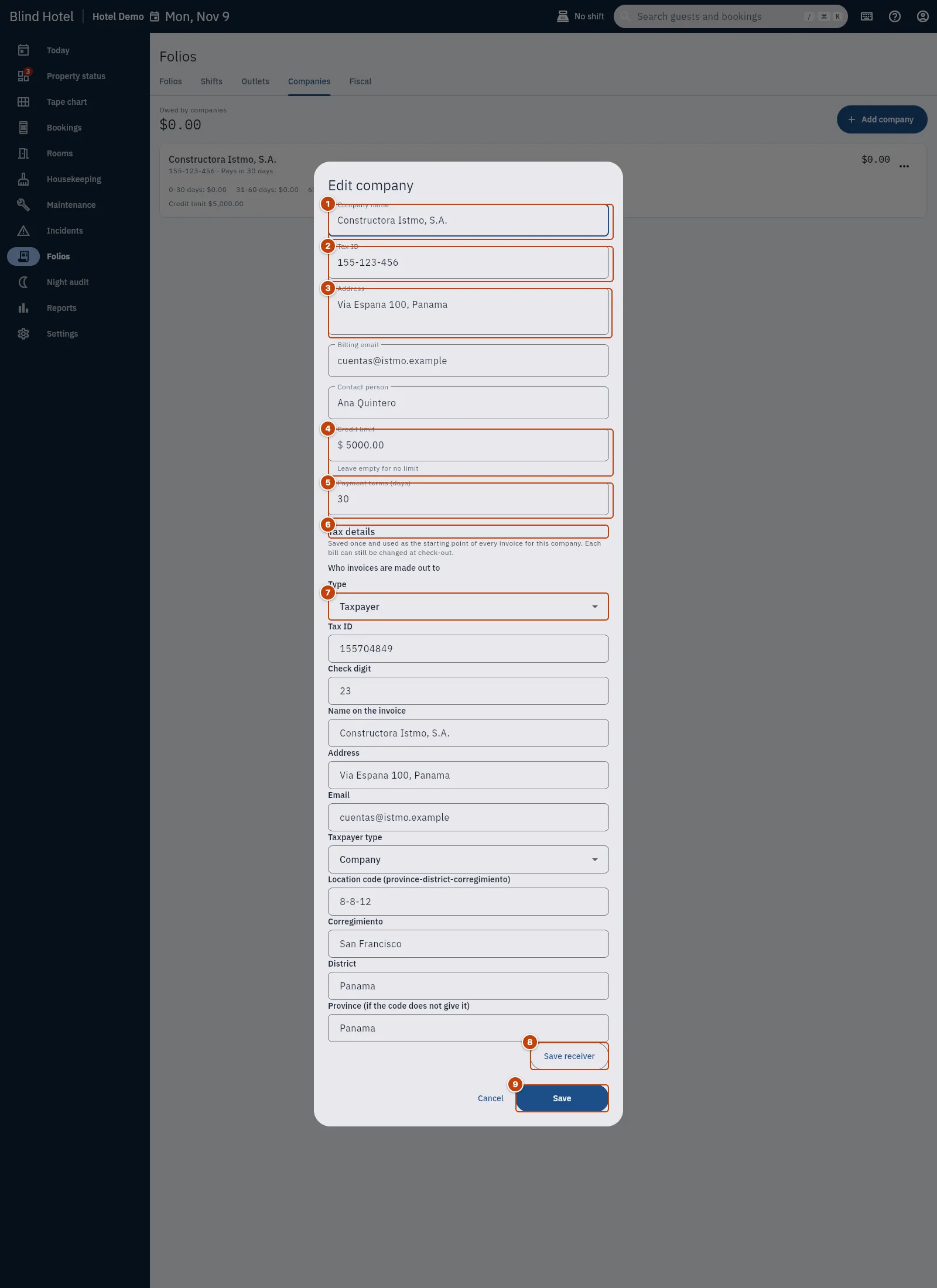
Parts of the screen
Section titled “Parts of the screen”- Company name: the name the company has on bookings, folios and its statement. It is required.
- Tax ID: the company’s tax number, as your country names it.
- Address, Billing email and Contact person: where the statement goes and who to call about it. The three are optional.
- Credit limit: the most the company may owe on its account. Leave it empty for no limit.
- Payment terms (days): the days the company has to pay, from 0 to 365. The company’s card shows them, for example “Pays in 30 days”.
- Tax details: who the company’s electronic invoices are made out to. It shows only where the hotel invoices electronically, and only for a company that already exists: New company does not show it until the company is saved once.
- Type: the first choice under Who invoices are made out to. For a company it is usually a taxpayer. The fields below follow the choice and the country of the hotel: Tax ID, Check digit, Name on the invoice, Address, Email and what your country adds.
- Save receiver: saves the tax details by themselves, at once. A message says “Tax details saved”.
- Save: saves the company’s data (the first five parts). Cancel closes the window without saving.
Options and filters
Section titled “Options and filters”- Credit limit: an amount, or empty for no limit. The card in the Companies tab says “No credit limit” or “Credit limit” with the amount.
- Payment terms (days): a whole number from 0 to 365. Anything else shows “Enter a whole number of days, 0 to 365”.
- Type: final consumer, taxpayer, foreigner or government, as the country allows. A company that pays taxes is a taxpayer; a government office takes the government type.
Actions
Section titled “Actions”- Save (Owner, Manager, Front desk, Night auditor): saves the name, tax ID, address, email, contact, credit limit and payment terms.
- Save receiver (Owner, Manager, Front desk, Night auditor): saves the tax details. It does not wait for Save.
- Cancel: closes the window and keeps what was saved before.
- On the company’s card, More actions also has Statement, and Deactivate or Reactivate. A deactivated company is not offered for new bookings and its account stays.
Colours, icons and badges
Section titled “Colours, icons and badges”- Over the credit limit: on the company’s card, when its balance is above the limit.
- Inactive: on the card of a company that was deactivated.
- The window itself has no colours of its own: a field with a problem shows its message under it.
Phone and desktop
Section titled “Phone and desktop”- On a phone the window fills the screen and scrolls. Cancel and Save stay at the foot while the fields scroll.
- On a desktop the window opens in the middle of the page. When it is taller than the screen it scrolls, and Cancel and Save stay in view.
Common questions
Section titled “Common questions”- Why do I not see Tax details? Your hotel does not invoice electronically, or you opened New company. Save the company, then open it again with Edit company.
- Do I have to fill in the tax details? No. Without them the invoice for the company is filled in at check-out. With them, each invoice starts from here, and a bill can still change them.
- Why did the app refuse a bill moved to the company’s account? The move would pass the credit limit: the app says “This would pass the credit limit.” An Owner or a Manager can go past it; raise the limit here if the company should owe more.