Process guide
Maintenance
TimeYour shift
- Maintenance
DifficultyEasy
The maintenance day: the issues you fix, from the first one reported to the one that is done.
Purpose
Section titled “Purpose”What is broken gets fixed in order of need, a room is off sale only while it has to be, and everyone can see where each issue stands.
Ingredients
Section titled “Ingredients”- Permissions: the Maintenance role.
- Information: which room or area, and what is wrong. The person who reported it wrote a note.
- State: someone has reported the issue, or you report it yourself in step 10.
Expected result
Section titled “Expected result”Each issue you worked is marked Done, with a note of what was done, and a room that was off sale goes to housekeeping and then back on sale.
-
Sign in. You land on Maintenance.
-
Start with Urgent, then Open. Assigned to me holds the issues that are yours. On a phone, Filters has the category and the urgency.
-
Tap an issue to open it. Read the note. A red Guest in room chip and the line “A guest is in this room. Treat it as urgent.” mean a guest is waiting: do it first.
-
If it is yours, tap Assign on the Assigned to card, choose yourself and tap Save. To give it to someone else, or to an outside company, choose them instead.
-
Tap Start when you begin the work.
-
Waiting for a part? Tap Waiting for parts and say Which part? (optional). When it arrives, tap Resume.
-
If the room cannot be sold until it is fixed, tap Room can’t be used on the room’s card. Pick the first night and the day the room is back in use on the calendar (or tap Switch to input to type First night and Back in use), tap Save and confirm.
-
When the work is done, tap Mark done, say What was done? (optional) and confirm.
-
Tap Add cost on the Cost card and enter the Parts and the Labour, then Save.
-
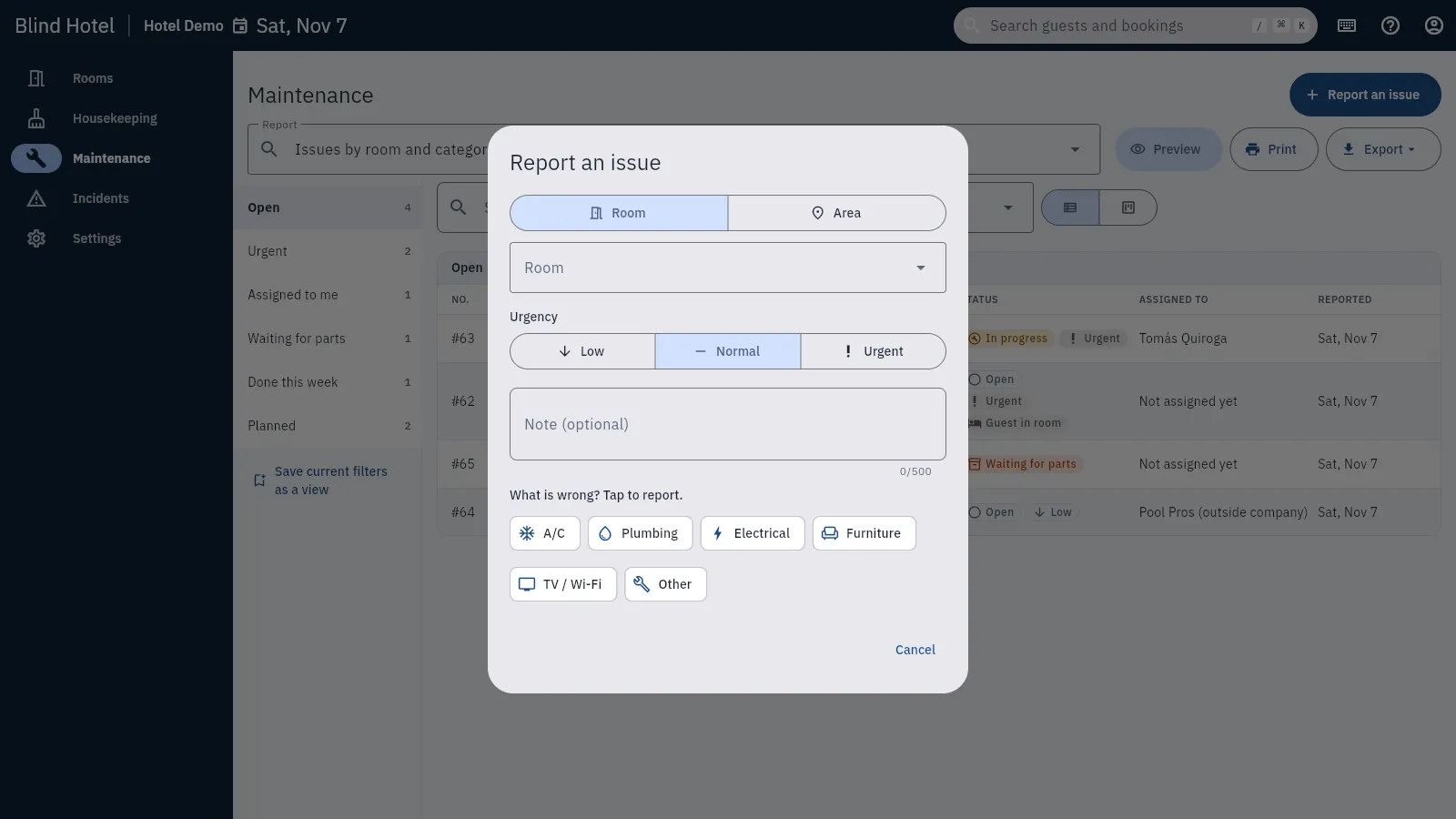
Did you see a fault that nobody reported? Tap Report an issue, choose the Room or the Area, and tap what is wrong.
-
For something that is not a repair, such as a door forced or a guest hurt, tap Log an incident under the issue. See Report an incident.
Check your work
Section titled “Check your work”The issue shows Done and leaves Open. It is under Done this week, and its Timeline lists who started it and when it was done. If the room was off sale, a message said “Done. Room 103 goes to housekeeping, then back on sale.”
What next
Section titled “What next”- The person who reported the issue, a supervisor or someone from maintenance taps Verify to confirm it is really fixed. If it is not, Reopen brings it back.
- Jobs that repeat, like cleaning the A/C filters, open an issue by themselves. They are in the Planned view.
- Every button of the screen is in The Maintenance screen.
- The maintenance reports are in the Report list under the title bar of the screen: pick one, then Preview, Print or Export. Your role opens only those. See The report preview.
- If the internet is down, write the fault on paper and enter it later. See If the internet is down.
Considerations
Section titled “Considerations”- If a booking sits in the nights you chose, Room can’t be used says to open each booking or move the guest to another room first, then try again.
- Once the issue is done, the room goes to housekeeping for a deep clean before it is sold again.
- Your own issues are under Assigned to me. People who can only report see just the issues they reported.