Screen guide
The Night audit screen
At a glance
- Purpose
- Settle what is left of the day, close it, and read the days that were closed before.
- Who uses it
- Owner
- Manager
- Night audit
- Where to find it
- Menu, Night audit
The night audit closes the hotel’s business day and starts the next one. This page explains the screen where you check what is left, run the audit and read the days already closed.
The screen
Section titled “The screen”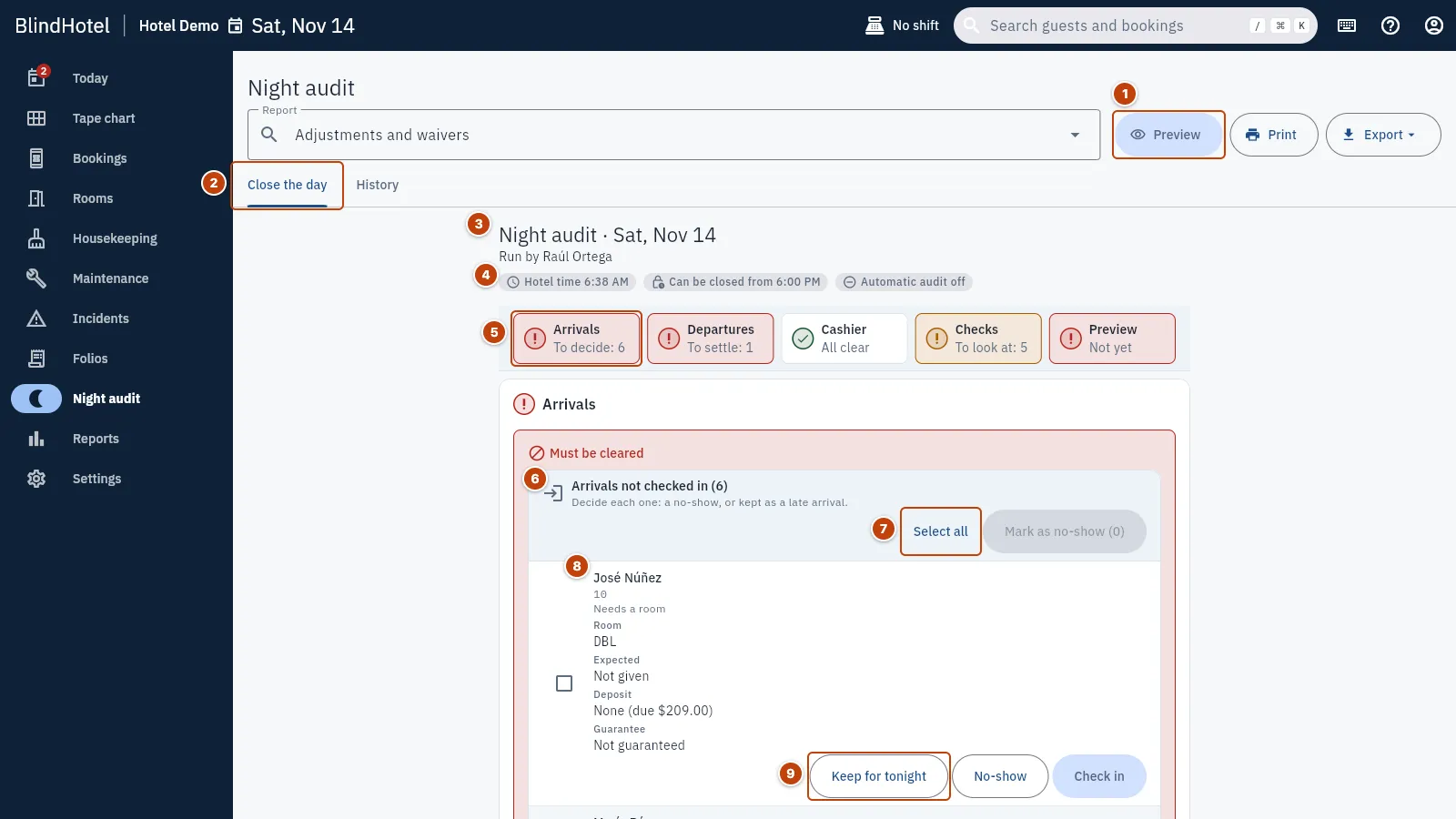
The screen shows five steps, one under the other. A step with nothing left folds into a single line. A step with something in it stays open.
Parts of the screen
Section titled “Parts of the screen”- Reports row: a line under the title bar. Pick a report in the Report list, then Preview, Print or Export it without leaving the page. A role that may open no report sees no row.
- The tabs: Close the day and History. A person who may run the audit sees both. An Accountant sees only History.
- The day and who runs it: the title, Night audit and a date, says which day you are closing. Under it, Run by shows your name. With the settings permission, a More menu next to the title opens Night audit settings.
- The hotel’s clock: small tags. Hotel time is the clock of the hotel, not of your device. Can be closed from is the earliest time the day may be closed by hand. Another tag says Automatic audit at a time, Automatic audit off or Automatic audit waiting. Audit due appears when the day was left open past the audit time.
- The steps bar: Arrivals, Departures, Cashier, Checks and Preview. Each one shows All clear, or how many are left (Preview shows Not yet while something stands in the way, then Ready, then the total of the preview): To decide, To settle, Open or To look at. Red means the step stands in the way. Amber means it only warns. Tap a step to jump to it.
- Arrivals not checked in: the guests who were due to arrive and have not checked in. The number is in the title. The hint says to decide each one: a no-show, or kept as a late arrival.
- Select all: ticks every guest of the list. When all are ticked it says Clear selection. The button next to it, Mark as no-show, shows how many are ticked.
- A guest’s row: the name and booking number, the room, the time they said they would come (Expected), the Deposit and the Guarantee. A note may say Late since a date or Needs a room.
- Keep for tonight: keeps the guest as a late arrival. It sits next to No-show and Check in. After you choose it the row says Kept: late arrival, with Change to undo it.
Options and filters
Section titled “Options and filters”- Departures: guests still in the hotel past their departure date. Each one needs Extend 1 night or Check out. Open shows the booking. Extending charges one more night at the rate plan’s price, and the guest keeps the room.
- Cashier: the shifts still open, with their float and the cash they should hold. Your own shift has Close or hand over. Another person’s has Close for people who read financial reports, and it needs two-step verification. Or leave it open: Night shift continues. An open shift does not stop the audit. The audit notes it.
- Checks: guests in the hotel without a room (Assign a room), guests over the credit limit, guests in the hotel without the deposit, cash differences waiting for approval, cleaning differences, and rooms out of order that end today. Each box says Must be cleared (red) or Can run anyway (amber). The property chooses which are which in Night audit settings.
- Preview: The audit will post the room nights, taxes and no-show fees with a Total to post. Tonight shows Rooms, the private rooms sold out of those available, with their ADR and RevPAR. Where you have dorms it shows Beds too, the dorm beds sold out of those available, with the Avg. bed rate and the Revenue per bed; the two rate lines of the rooms then read ADR (rooms) and RevPAR (rooms). A hotel with only dorms has no private rooms to sell, so it shows Beds alone. The last line gives the new business date.
- Run night audit for the date: closes the day after one question. See The night audit.
- Day closed: after the audit, the page shows what was posted, the same Rooms and Beds lines as the preview, the new date, Open the report, Print all (one PDF) and Back to the checklist.
- History: the closed days, newest first. Each line says who closed it, when, Manual or Automatic, and the day’s Room occupancy, revenue and payments. Where you have dorms, one more line tells the beds: Beds sold, Bed occupancy, Avg. bed rate and Revenue per bed. A hotel with only dorms has no room occupancy there, only the revenue and the payments. The print icon prints the day’s reports.
- Report: the list in the Reports row. Under This department are the reports made for this page, and under All reports the others your role may open, each group in alphabetical order. Type in it to narrow the list: the headings remain over what is left. The report you pick is kept for you on this page, on any computer. A report opened from here starts on the business date. Print and Export use the same dates. For other dates, tap Preview and change them there.
Actions
Section titled “Actions”- Check in (Owner, Manager, Night auditor): opens the check-in for that guest, over the audit.
- Keep for tonight (Owner, Manager, Night auditor): the guest stays as a late arrival. No charge is made.
- No-show (Owner, Manager, Night auditor): marks the booking as a no-show in its own panel, with its fee or without it. A person who can do neither sees Ask a manager, switched off.
- Mark as no-show (the same roles): marks every ticked guest at once. You choose Charge the fees or Waive the fees, with a reason for waiving. One confirmation covers all of them.
- Extend 1 night (Owner, Manager, Night auditor): asks first, then keeps the guest one more night. Check out sits next to it. Without the permission, the row only has Open.
- Run night audit for the date (Owner, Manager, Night auditor): the button stays off while anything stands in the way or before Available from a time. It asks to close that date, lists the warnings that stay as they are, and says that a closed day cannot be reopened. Confirm with Run night audit.
- Check again or Retry: after an answer that did not arrive, the page says We couldn’t confirm the result. Check again asks the server without running the audit a second time.
- Preview, Print and Export (Owner, Manager, Night auditor, Accountant): act on the report shown in the Report list. Preview opens it in a large window with its own dates. Print asks the language of the paper first. Export has two choices, CSV file and Excel file. See The report preview.
Colours, icons and badges
Section titled “Colours, icons and badges”- Red step or box: it stands in the way (Must be cleared). Amber: it only warns (Can run anyway).
- A check mark on a step: All clear. An exclamation mark: something is left.
- Tags with a clock, a padlock-clock or a circling arrow: the hotel time, the earliest manual close and the automatic audit.
- A circling arrow in the history is an Automatic audit. A person icon is a Manual one.
Phone and desktop
Section titled “Phone and desktop”- The audit is not on the phone’s bottom bar. Open it from the menu.
- In a narrow window the values and buttons of each row stack under the name, and every value shows its label.
- On a phone the Report list takes the full width, and Preview, Print and Export wrap onto a line under it.
Common questions
Section titled “Common questions”- Why is the Run button off? An arrival or a departure is still to be settled, a check stands in the way, or it is too early. The text under the button says which.
- Why can’t I see the Close the day tab? You need the night audit permission. The Accountant reads the history.
- Why does the business date not change by itself? Only the night audit moves it. If it is left open past its time, Audit due appears.
- Why do I see Beds and no Rooms? Your hotel sells only dorm beds, so there are no private rooms to count. The preview, the result of the day and the history show the beds alone.
- Can I run it twice? No. Each day closes once, and a repeated press after a lost answer does not run it twice.
- Why is there no Reports row? Your role may open no report, so the row is hidden. A Housekeeper may open none. The Housekeeping supervisor opens only the housekeeping reports, and Maintenance only the maintenance reports, so their row lists just those. Ask a manager if you need more.