Screen guide
The Charge items screen
At a glance
- Purpose
- Keep the list of things you sell, each with its price and tax, so the front desk can charge them to a folio.
- Who uses it
- Owner
- Manager
- Where to find it
- Menu, Settings, then Charge items
Everything you charge to a room or sell at an outlet: food and drink, minibar, laundry, services and fees, in one list you can search and change in bulk.
The screen
Section titled “The screen”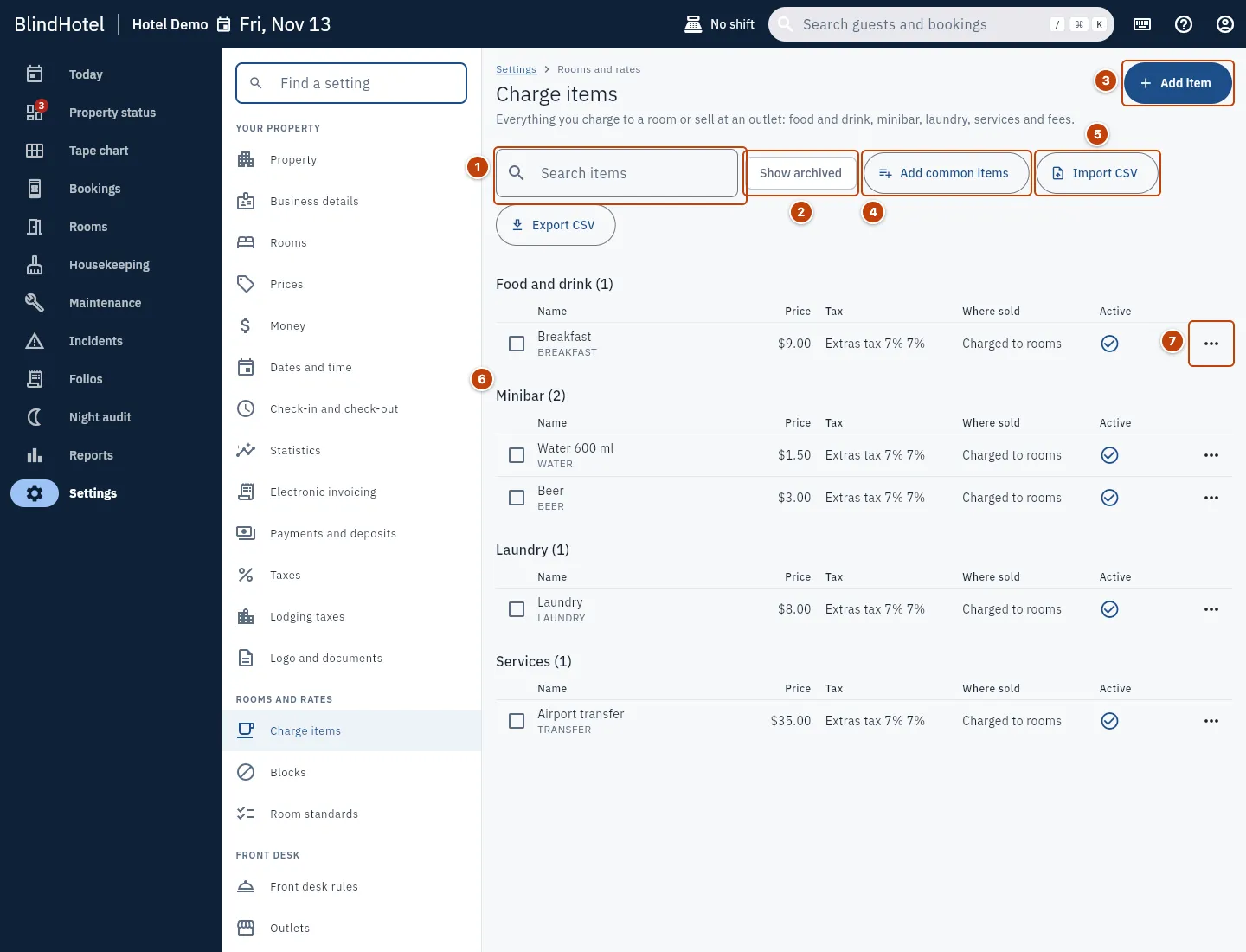
Parts of the screen
Section titled “Parts of the screen”- Search items: finds an item by its name or code as you type.
- Show archived: also lists the items you stopped using.
- Add item: opens the window to make one item.
- Add common items: offers the items most properties of your type sell.
- Import CSV and Export CSV: bring many items in from a file, or save the list to a file.
- A group: the items are grouped by category, for example Minibar, with how many are in it. Each row shows the Name, the Price, the Tax, Where sold and whether it is Active.
- More actions: the menu of a row, with Edit, Duplicate and Archive.
Options and filters
Section titled “Options and filters”- Search items: type part of a name. If nothing matches, the page says so and shows your words.
- Show archived: archived items show with the tag Archived and a Restore action.
- The tick box at the start of a row picks the item. Pick one or more to see the bulk bar.
Actions
Section titled “Actions”- Add item (Owner, Manager): type the Name, pick the Category, type the Price, check the Tax and say Where it is sold. Leave Code (optional) empty and a code is made from the name. The tax is filled in from the category. Change it if this item is different.
- Add common items (Owner, Manager): choose the Type of property, untick what you do not sell, and tap the button. The prices are examples: set your real ones after.
- Import CSV (Owner, Manager): Download a template, fill it in, then Choose a file or paste it. The window lists every line that has a problem before anything is saved.
- Export CSV: saves the list as a file you can open in a spreadsheet.
- Edit, Duplicate, Archive and Restore (Owner, Manager): in More actions. An item that was already charged is archived and never deleted, so the history stays whole.
- Select all, Change price, Change tax, Archive and Clear selection (Owner, Manager): the bulk bar. Change price works By a percentage or By an amount. Archive asks first. A change to many items happens all together or not at all.
Colours, icons and badges
Section titled “Colours, icons and badges”- Archived marks an item that no longer shows where items are picked.
- A tick in the Active column means the item can be charged.
- Exempt and Taxed in the Tax column say whether tax is added to the price.
Phone and desktop
Section titled “Phone and desktop”- On a desktop the list is a table with columns. On a phone each item is a card with the same facts and its More actions menu.
- With no items the page explains itself and offers Add common items and Import CSV.
Common questions
Section titled “Common questions”- Why can’t I delete an item? An item that was ever charged stays in the history. Archive it: it stops showing where items are picked, and Restore brings it back.
- Where does the price show up? At the front desk, when someone charges the item to a folio, and at the outlet that sells it.
- Can I change many prices at once? Yes. Pick the items and choose Change price.
- Does the CSV need every column? No. Only name, category and price are needed.