Process guide
Set up electronic invoicing (Panama)
Time30 minutes, plus the days your provider takes to give you the files
- Owner
DifficultyCareful
Connect the hotel to the tax authority’s electronic invoicing, test it, and switch it on.
Purpose
Section titled “Purpose”In Panama every invoice has to be electronic: signed, sent to the tax authority through an authorized provider (a PAC), and accepted before it is final. This process tells the app which provider and which branch you invoice with, and gives it the certificate and the credentials that let it sign and send for you.
Ingredients
Section titled “Ingredients”- Permissions: Owner. Changing these settings needs your two-step sign-in.
- Information: The branch code, the invoicing point and, if you use one, the numbering series that the tax authority gave you. The hotel’s RUC and check digit are already in your business details.
- Documents: The electronic signature certificate (a file) and the credentials your provider gave you, with the day the certificate ends.
- State: You are registered with the tax authority’s electronic invoicing system and have a contract with a provider.
Expected result
Section titled “Expected result”Invoice electronically is on, the environment is the one you chose, and every item under Before you start shows Done. From then on each folio that closes gets an invoice sent by itself.
-
Go to Settings, then Electronic invoicing. If the page says invoicing is not available for your country, there is nothing to set up yet.
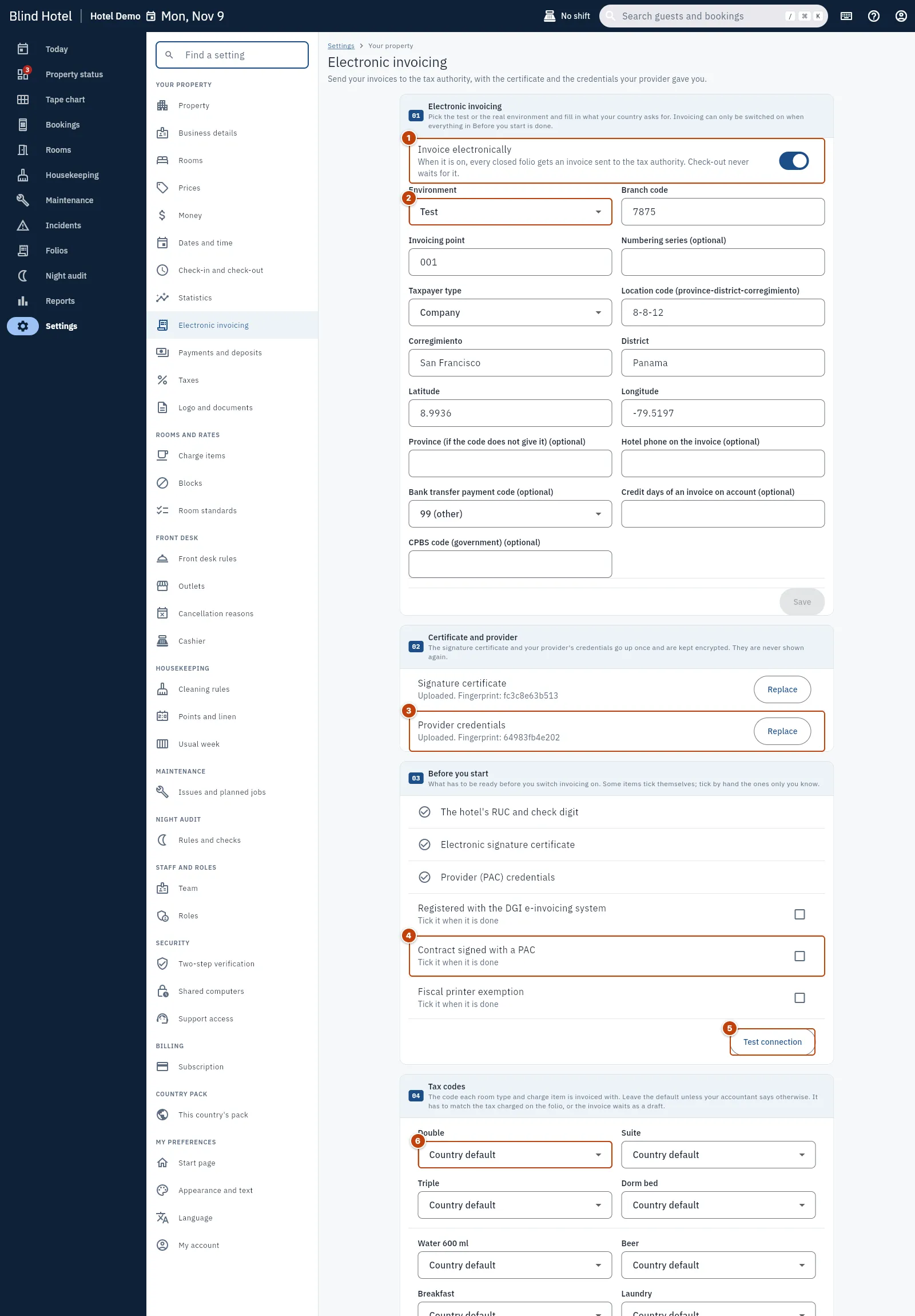
In the picture: 1 the switch Invoice electronically; 2 the Environment and the fields your country asks for; 3 the credentials of your provider, uploaded once; 4 an item of Before you start that you tick by hand; 5 Test connection; 6 Tax codes.
-
In Electronic invoicing, pick the Environment: Test while you try it, Production when you are ready for real invoices. Fill in the fields the page asks for and tap Save.
-
In Certificate and provider, find Signature certificate and tap Upload. Paste the whole text of the file into File contents, pick the date in Certificate ends on, and tap Upload.
-
Do the same for Provider credentials. Both show their fingerprint once uploaded; the app never shows the contents again.
-
Tap Test connection. The app says The connection works. or tells you to check the credentials.
-
Under Before you start, tick by hand the items only you know, such as the registration with the tax authority and the contract with the provider. The ones the app can see tick themselves.
-
Check Tax codes. Leave the country default unless your accountant tells you otherwise.
-
Switch on Invoice electronically and tap Save.
Check your work
Section titled “Check your work”Every item under Before you start shows Done, and the page shows the certificate with the days left. Close a test folio: in Folios, the Fiscal tab lists its invoice, first as Queued or Sent, then Accepted.
What next
Section titled “What next”Start in Test and close a few folios. When they all come back Accepted, switch the environment to Production. See Invoice a guest or a company.
Considerations
Section titled “Considerations”- Closing a folio never waits for the tax authority. If it cannot be reached, the invoice goes out later. See What contingency means.
- The certificate has an end date. Thirty days before it, the page tells you how many days are left; upload a new one with Replace.
- Remove takes a file out. Without them the app cannot invoice.
- Only the Owner changes these settings. Other roles that read invoices can open the page, but not change it.
- What the invoices need about each guest or company is not here. It is saved once in their profile (Tax details), checked in the Invoice section at check-out, and fixed in the Fiscal tab when a document is rejected. The fields and their names follow the country of the hotel, so a person who works at two hotels sees each hotel’s own.