Screen guide
The price calendar
At a glance
- Purpose
- See what each room type costs under each rate plan, night by night, and change many prices at once.
- Who uses it
- Owner
- Manager
- Where to find it
- Menu, Settings, then Prices, then Calendar
Every price of the hotel night by night: room types and rate plans down the side, nights across the top. It opens from the Calendar button of the Prices screen.
The screen
Section titled “The screen”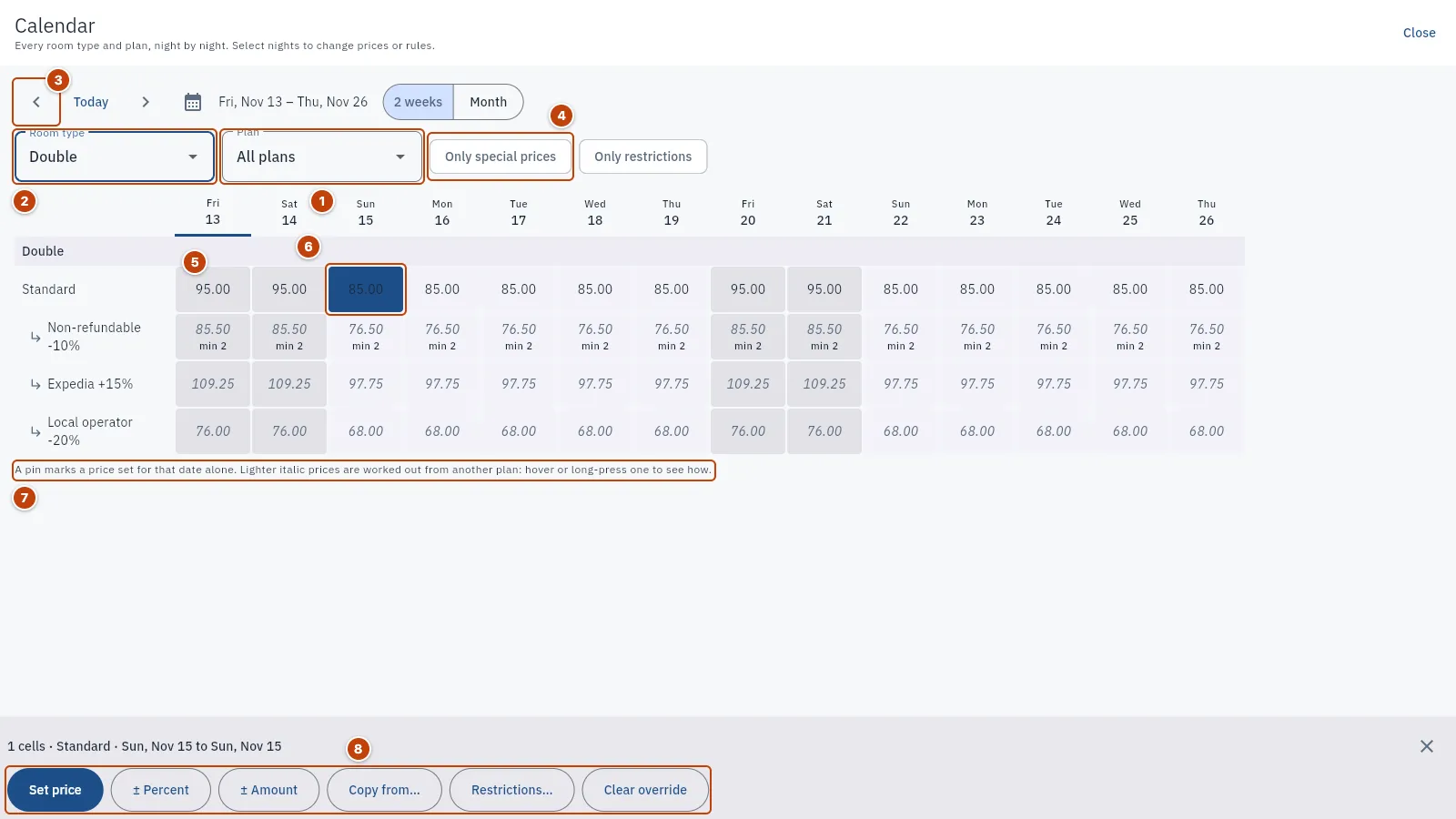
Parts of the screen
Section titled “Parts of the screen”- Plan: shows one rate plan, or All plans.
- Room type: shows one room type, or All room types.
- Earlier nights and Later nights: move the window of nights. Today brings you back to the first night you can still sell.
- Only special prices and Only restrictions: keep the rows that have a price set for a date, or a restriction.
- The grid: a band for each room type, a row for each plan, a column for each night. A derived plan sits under its parent plan.
- A price: one night of one plan in one room type. Tap it to pick it, or drag over many.
- The legend: what the pin and the lighter prices mean.
- The selection bar: appears at the bottom when you pick prices. It says how many are picked and has the buttons that change them.
Options and filters
Section titled “Options and filters”- Plan and Room type: work together. Clear filters shows everything again.
- Only special prices: shows only the rows with a price set for a single date.
- Only restrictions: shows only the rows with a minimum stay or a closed night.
- Earlier nights, Later nights and Today: the grid shows two weeks at a time. Pick Pick a date to jump to a day.
Actions
Section titled “Actions”- Set price: gives the picked nights one price. A preview shows what would change before anything is saved.
- ± Percent and ± Amount: raise or lower the picked prices. Choose Raise or Lower.
- Copy from…: copies the prices of another day.
- Clear override: takes away a price set for a single date. The night goes back to its season, weekday or normal price.
- Restrictions…: sets Minimum nights, Closed to arrival, Closed to departure and Stop sell (closed) for the picked nights.
- Apply changes: saves the change shown in the preview. Nothing is saved before you tap it.
- Cancel: closes the window and leaves the prices as they were.
- Close: leaves the calendar and goes back to the four steps. Nothing is lost: every change is saved when you apply it.
Colours, icons and badges
Section titled “Colours, icons and badges”- A pin marks a price set for that date alone. It is bold and has a thin border.
- A lighter price in italics is worked out from another plan, for example Standard +15%. Hover over it, or press it for a moment on a touch screen, to see how.
- A price with a line through it is Closed for sale that night.
- A small arrow in is Closed to arrival and an arrow out is Closed to departure. min 3 means a minimum of three nights.
- Nights before today are dimmed. They are past and cannot be changed.
- No price means the night cannot be booked yet.
Phone and desktop
Section titled “Phone and desktop”- On a desktop, drag over prices to pick a block of one plan. Hold Shift to extend it. Double-click a price to type a new one in place.
- On a phone the grid shows one room type and one plan at a time, as a list of nights. Tap a night, then another one to pick the run between them. Change the plan or the room type with Plan and Room type.
Common questions
Section titled “Common questions”- Why can’t I type a price in a derived plan? Its price follows its parent plan. Change the parent, or pick the night and use Set price to give that one night its own price.
- Why did a price change that I did not pick? A derived plan follows its parent plan. When Standard goes up 10%, the plans derived from it go up too.
- Why can I not change a night? It is before today, or you are not an Owner or Manager.
- Where do I set a special date? Here: pick the night and choose Set price. It then wins over the season and the weekday price. See How your room price is calculated.