Process guide
The quick setup
Time30 to 60 minutes. You can stop and come back.
- Owner
DifficultyMedium
A short list of steps that gets a new hotel ready, and ends with Open for bookings.
Purpose
Section titled “Purpose”A hotel cannot take a booking until it has rooms, prices and a few legal details. The quick setup asks for them in the right order, saves each step as you go, and ends with the moment the hotel opens for bookings.
Ingredients
Section titled “Ingredients”- Permissions: The Owner. Only an Owner can tap Go live, and it needs two-step sign-in.
- Information: Your room types and how many rooms of each, a normal price per night for each type, your tax, your check-in and check-out times, the legal name and tax ID of your business, and the hotel’s street, city, phone and email.
- State: Your account is created and your email confirmed. You have a phone with an authenticator app for step 6.
Expected result
Section titled “Expected result”The last screen says that your hotel is open for bookings, and offers what to do next.
-
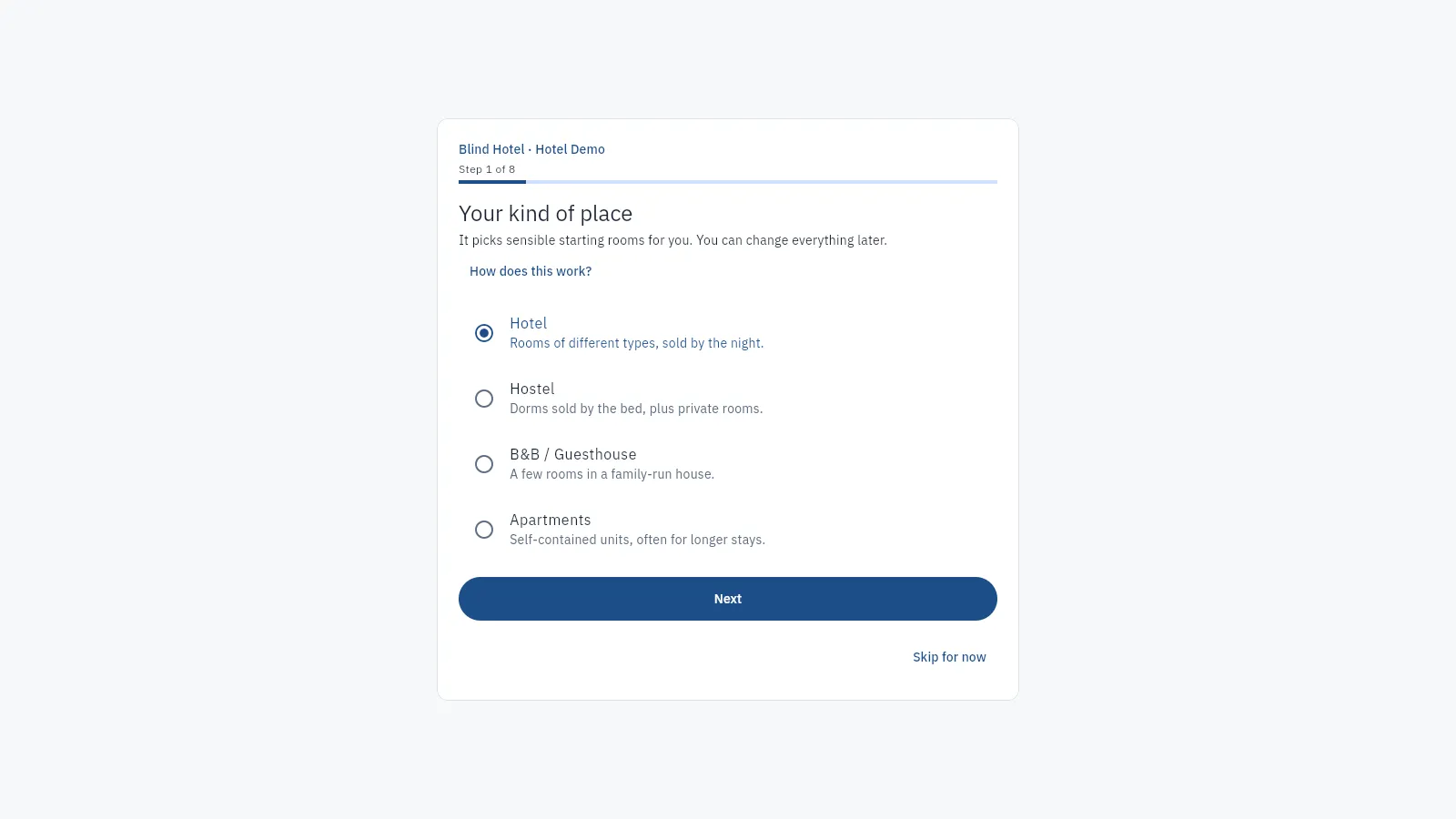
Choose Your kind of place: Hotel, Hostel, B&B / Guesthouse or Apartments. Tap Next. The app uses your answer to suggest starting rooms.
-
In Your business details, check the legal name. It starts as the hotel’s name. Type the tax ID, the box carries your country’s name for it. Type the street, the city, a phone and an email. Tap Next. See Your business details.
-
In Your rooms, add your room types and rooms. Bookings are made on rooms, so they come first. Tap Next. See Set up rooms.
-
In Your prices, set a normal price for each room type. The same step asks for your tax and your check-in and check-out times. Tap Next to save them. See Set prices and taxes.
-
In How guests pay, switch on the payment methods you accept. Each switch saves as you flip it. Tap Next.
-
In Protect your account, install an authenticator app, scan the code, type the 6-digit number it shows and tap Turn on. The setup then goes on by itself. If it is already on, tap Next. See Protect your account.
-
In Team, tap Invite and fill in the form to add a person. This step is optional. Tap Next. See Invite your team.
-
In Open for bookings, the screen lists what the hotel still needs. Next to a missing item, tap Fix to go back to its step.
-
When every item is done, tick the box that says the time zone and the currency cannot change. Tap Go live, then confirm.
-
Choose what is next: Make your first booking, Practice in the demo hotel, Read the 5-minute guide or Go to Today.
Check your work
Section titled “Check your work”The top of the screen shows where you are, for example “Step 3 of 8”. On the last screen, Open for bookings lists every item as done. After Go live it says that your hotel is open for bookings.
What next
Section titled “What next”- To skip a step, tap Skip for now. The step counts as passed, and the setup card on Today keeps asking for what is missing.
- To go back one step, tap Back. Under each title, How does this work? opens the help page for that step.
- To come back later, open Today. Owners and managers see a setup card there. Tap Continue the quick setup. You land on the first step you have not saved. If you left on the last step, use Continue setup on the banner at the top of Today, or open Settings, then Setup wizard.
- To leave the hotel closed for now, tap Not yet, take me to Today on the last step.
- After you go live, make a booking. See Your first booking. To read the short guide, see Getting started.
- To change anything later, open Settings. See The Settings screen.
Considerations
Section titled “Considerations”If two-step sign-in is off, the last step shows Set up first, because going live needs it. See Protect your account.