Screen guide
The check-out sheet
At a glance
- Purpose
- Check a guest out with the folio settled, the departure confirmed and the room released to housekeeping.
- Who uses it
- Owner
- Manager
- Front desk
- Night audit
- Where to find it
- Today, Check out on a departing row; the booking panel; a row of the Bookings list
The sheet where you settle a guest’s folio, take the Balance due and check them out.
The screen
Section titled “The screen”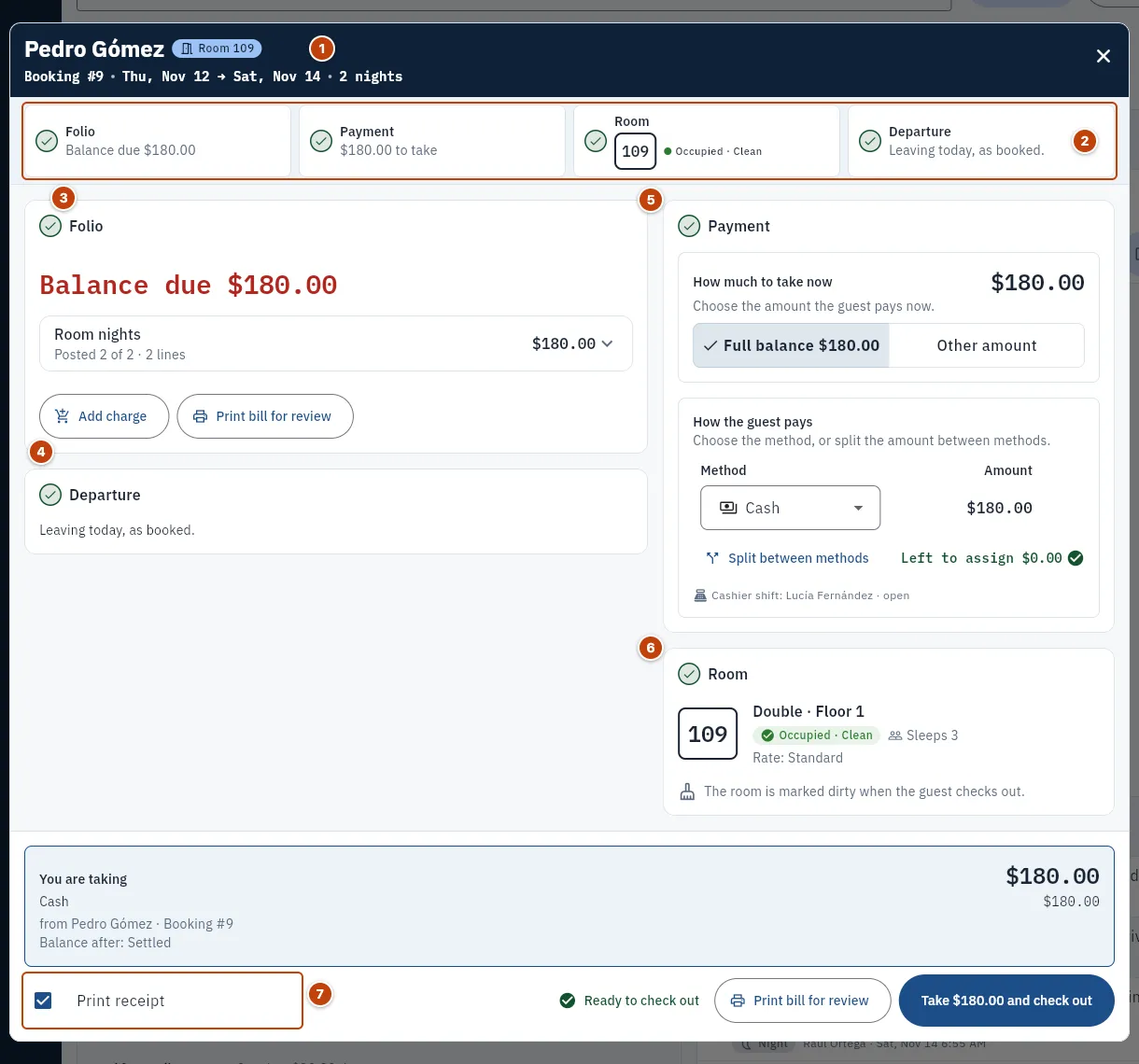
Parts of the screen
Section titled “Parts of the screen”- Header: the guest, the room, the booking number and the dates. The title is “Check out” and the guest’s name.
- Steps bar: one cell for each section: Folio, Payment, Room and Departure. Green check: done. Amber exclamation mark: needs attention. Red: blocked. Tap a cell to jump to it.
- Folio: every charge and payment on the guest’s folio so far, as in the folio itself. Add charge adds something missing, such as the minibar. Print bill for review prints the bill to show the guest first.
- Departure: “Leaving today, as booked.” when all is normal. After the check-out time it shows “Past check-out time” with Add late check-out charge and Skip. Before the booked day it shows a box such as “Leaving 1 night early”.
- Payment: “Deposit already paid” when there is one, then How much to take now, which starts at the full balance, and How the guest pays. Split the amount between up to four methods with Split between methods.
- Room: “The room is marked dirty when the guest checks out.” If someone arrives in this room today, a switch ending in “Rush clean” is on, so housekeeping cleans it first.
- Footer: Print receipt (ticked at first), Print bill for review again, the “You are taking” box, and the status: “Ready to check out” or what is missing. When the guest has a credit, Refund and Keep as credit appear here. The main button stays off until nothing is missing.
Options and filters
Section titled “Options and filters”-
Full balance or Other amount: the amount to take now. A smaller amount leaves a balance open, which only an Owner or a Manager may do.
-
Split between methods: up to four lines, each a method and an amount. “Left to assign” shows what is not given a method yet; “Over by” shows too much.
-
“Leaving N nights early”: a tick box. The stay ends after the last night and the later nights and the room go back on sale.
-
Invoice: only where the hotel invoices electronically. It shows who the invoice is for, a discount program and an exoneration, filled from the guest’s or the company’s Tax details. It is folded when everything is there and opens by itself when something is missing. Check-out never waits for the invoice. See Invoice a guest or a company.
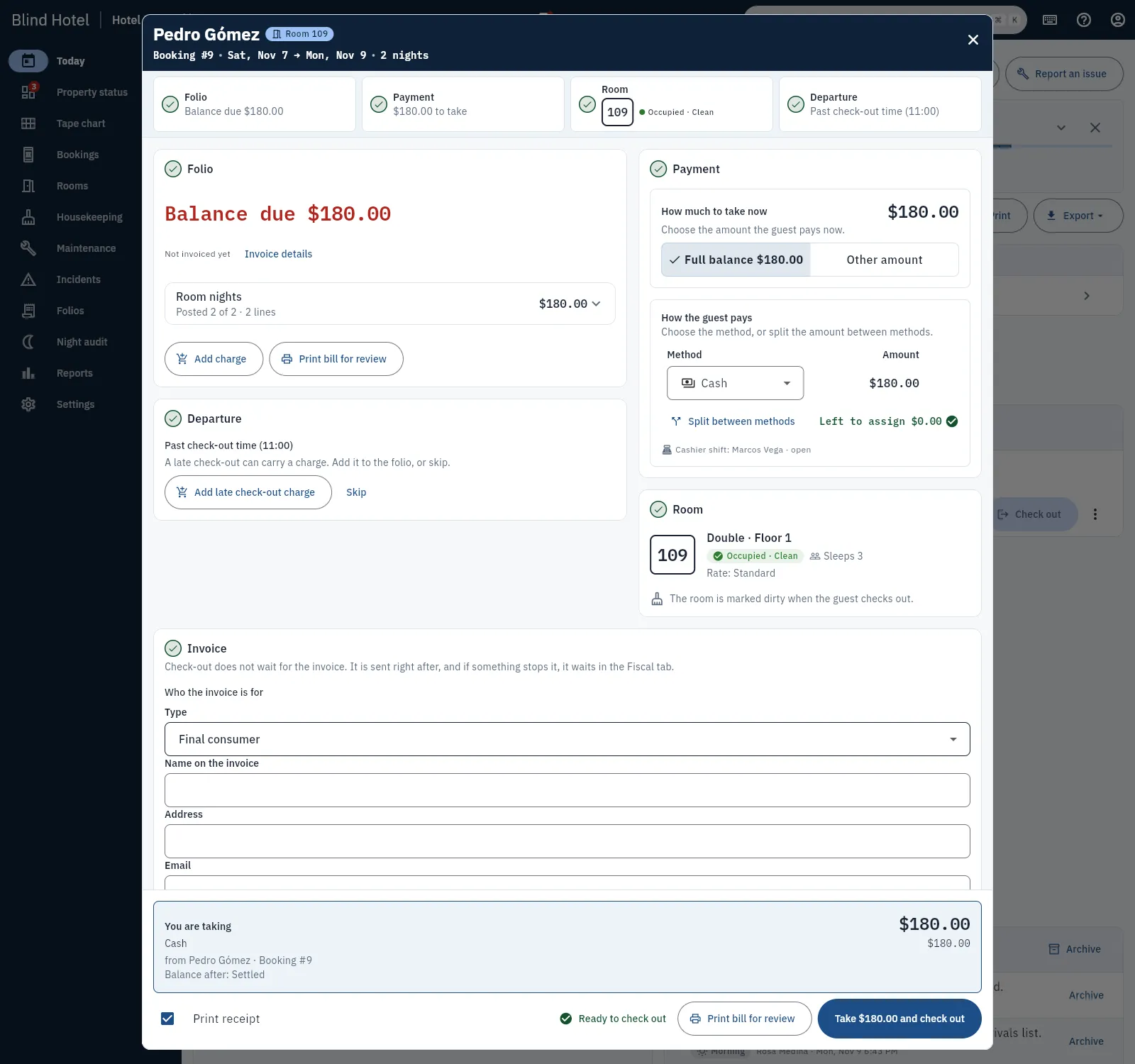
-
Rush clean: on when someone arrives in the room today. Switch it off if you do not want housekeeping to hurry.
-
Refund or Keep as credit: appear when the guest has a credit. Only an Owner or a Manager may keep it as credit.
Actions
Section titled “Actions”- Check out (Owner, Manager, Front desk, Night auditor): checks the guest out. When money is taken it reads “Take” with the amount and “and check out”. A message follows with Undo.
- Add charge (Owner, Manager, Front desk, Night auditor): posts a charge to the folio before you settle.
- Add late check-out charge and Skip (Owner, Manager, Front desk, Night auditor): charge the late fee, or leave it out.
- Refund with the amount (Owner, Manager, Front desk, Night auditor): gives the credit back to the guest, with the method you choose.
- Keep as credit (Owner, Manager): leaves the credit on the folio.
- Print receipt: prints the receipt when the check-out is done. Untick it if the guest does not want one.
- Undo (Owner, Manager, Front desk, Night auditor): in the message after the check-out. See When the app says no at the desk for when it is refused.
Colours, icons and badges
Section titled “Colours, icons and badges”- Green check in the steps bar: the section is done. Green “Ready to check out”: the button is on.
- Amber exclamation mark: something is missing. The footer lists it, one thing after another, separated by dots.
- Red: a blocked step, for example a balance that you may not leave open.
- Amber note under a payment: a credit is left, or an amount is still unassigned.
Phone and desktop
Section titled “Phone and desktop”- On a phone the sheet fills the screen. The sections follow one another in the order of the steps bar. The steps bar scrolls sideways.
- From about 1000 px there are two columns: Folio and Departure on the left, Payment and Room on the right.
- Esc closes the sheet. Nothing is done until you tap the main button.
Common questions
Section titled “Common questions”- Why did the guest check out without a sheet? When the Balance due is zero, tapping Check out on Today checks the guest out at once and keeps Undo for a few seconds. Use the booking panel if you want the sheet.
- Why does it say “Settle the folio before checking out.”? The folio has a balance and you may not leave it open. Take the payment here.
- Who can leave a balance open? Only an Owner or a Manager, and only with two-step sign-in. The balance stays on the folio for later.
- Can I check out several guests at once? On Today, Check out all settled checks out every guest who owes nothing, after you confirm the names.
- Why does the sheet have an Invoice section? The hotel invoices electronically. Open it to change who the invoice is for or to give the retired and senior discount; the amount to take follows. If the tax authority is down, the guest still checks out and the invoice waits in the Fiscal tab.
- Where is the receipt later? Open the guest’s page and look in Documents.