Screen guide
The Rooms screen
At a glance
- Purpose
- See the state of every room and act on one, from a single page.
- Who uses it
- Owner
- Manager
- Front desk
- Night audit
- Housekeeping
- Maintenance
- Where to find it
- Menu, Rooms
Every room of the hotel at a glance: which are ready, dirty, occupied or out of order, and what to do about each one.
The screen
Section titled “The screen”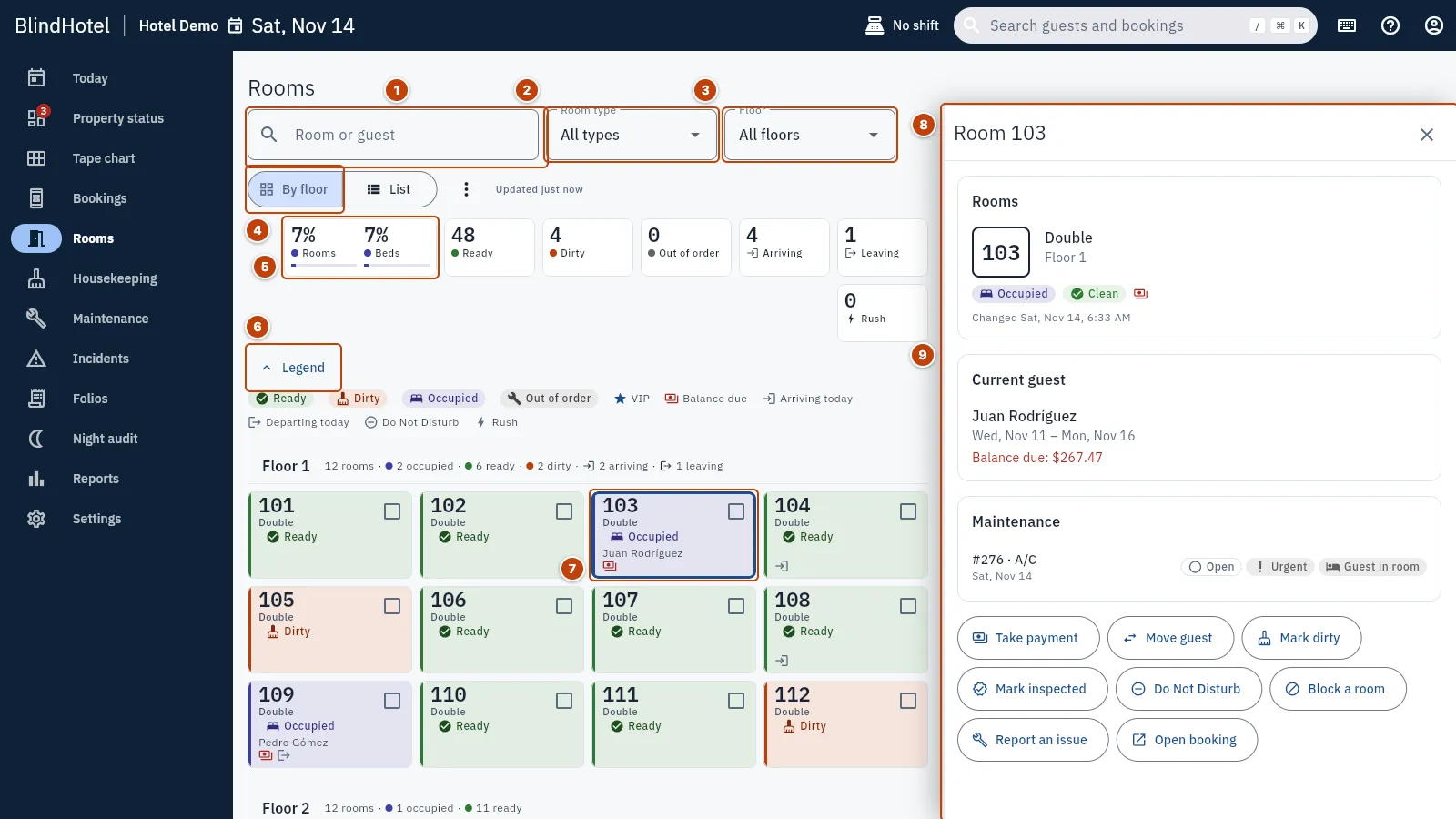
Parts of the screen
Section titled “Parts of the screen”- Room or guest: search by a room’s code or by a guest’s name. Guest names work only for roles that read bookings.
- Room type: shows one type of room. All types shows them all.
- Floor: shows one floor. All floors shows them all.
- By floor and List: the two ways to see the rooms. By floor draws tiles under a band for each floor. List is a table you can sort. A note beside them says how fresh the page is, such as Updated just now.
- Summary boxes: Occupancy shows Rooms, the private rooms that have a guest out of those you can sell, and, where you have dorms, Beds beside it: the dorm beds that have a guest out of those you can sell. A dorm is never counted as a room. Then Ready, Dirty, Out of order, Arriving, Leaving and Rush. Tap one to show only those rooms.
- Legend: a key to the colours and the small signs of the tiles. It folds.
- A room tile: the room’s code, its type, a word and an icon for its state, the guest’s name when you may read bookings, and its small signs. The box in the corner ticks the room. The open room has an outline.
- The room panel: opens beside the page, or as a page on a phone. Its title is the room’s code. Its first card, Rooms, shows the type, the floor, the state, the signs and who changed the state and when. A blocked room says the kind of block, its reason and the date it lasts to.
- Current guest: shown when a guest is in the room and you may read bookings. It has the guest, the dates and, for roles that see money, the balance. Other cards can follow: open issues in the room, the Next arrival and, for a dorm, its Beds. The buttons for the room are at the bottom of the panel.
Options and filters
Section titled “Options and filters”- Summary boxes as filters: tap a box to filter, tap it again to undo. Clear filters shows when anything narrows the rooms.
- Room type and Floor menus: they work together with the search and the boxes.
- List: tap a column heading to sort. Narrow windows drop the less important columns first.
- Dorms: a dorm room shows its beds as tiles of their own. The small menu beside the view switch has Expand all dorms and Collapse all dorms.
- Tick rooms: the box in a tile’s corner ticks it. A bar then says how many are selected and offers Mark clean and Mark dirty (only if your role may change a cleaning state), Print list and Clear selection.
Actions
Section titled “Actions”- Check in, Check out (Owner, Manager, Front desk, Night auditor): for the room’s arrival or departure of today.
- Take payment (Owner, Manager, Front desk, Night auditor): for the folio of the guest in the room.
- Move guest (Owner, Manager, Front desk, Night auditor): moves the guest in the room to another room.
- Mark clean and Mark dirty (Owner, Manager, Housekeeping supervisor, Housekeeper): change the room’s cleaning state. In a dorm, Mark all beds clean does every bed.
- Mark inspected (Owner, Manager, Housekeeping supervisor): the supervisor’s check after cleaning.
- Rush clean and Not a rush any more (Owner, Manager, Front desk, Night auditor, Housekeeping supervisor): for a room that is not ready, put it first in housekeeping’s day, or take it back.
- Do Not Disturb and Lift Do Not Disturb (Owner, Manager, Front desk, Night auditor, Housekeeping supervisor, Housekeeper): for a room with a guest.
- Block a room and Unblock (Owner, Manager, Front desk, Night auditor, Housekeeping supervisor, Maintenance): take a room out of sale for some nights, and give it back.
- Report an issue (everyone who may report one): starts a maintenance report for the room.
- Open booking (roles that read bookings): shows the guest’s booking beside the page.
- More actions: in the list, the three dots on a row offer the same actions.
Colours, icons and badges
Section titled “Colours, icons and badges”- The tile’s colour follows the state: Ready, Dirty, Occupied or Out of order. A word and an icon say it too, so you never need the colour alone.
- A blocked room’s tile says the kind of block, Out of order or Out of service, in place of its state.
- A star is a VIP guest. A red payment sign is Balance due.
- An arrow in is Arriving today. An arrow out is Departing today.
- A circle with a bar is Do Not Disturb. A lightning bolt is Rush.
- A band over a floor sums it up: how many rooms, and how many are occupied, ready, dirty, out of order, arriving or leaving.
Phone and desktop
Section titled “Phone and desktop”- On a phone the filters stack, the legend starts folded, the list becomes cards, and the room opens as a page. The bar for ticked rooms sits at the bottom.
- Press / to jump to the search and Esc to close the panel, when you are not typing.
- The page reads again by itself when something changes in the hotel.
Common questions
Section titled “Common questions”- Why don’t I see guests’ names? Your role does not read bookings. You see the rooms without them.
- Why is there no Mark inspected button? Only owners, managers and housekeeping supervisors inspect rooms.
- Why is an occupied room also clean? The tile shows whether someone is in. The panel shows the cleaning state apart.
- Where do I add rooms? In Settings. See Set up rooms.