Screen guide
Guests
At a glance
- Purpose
- Look up a person, read their history and notes, and start a booking for them.
- Who uses it
- Owner
- Manager
- Front desk
- Night audit
- Housekeeping
- Where to find it
- Menu, Bookings, then the Guests tab
Find a guest, see their past stays and keep notes for their next visit.
The screen
Section titled “The screen”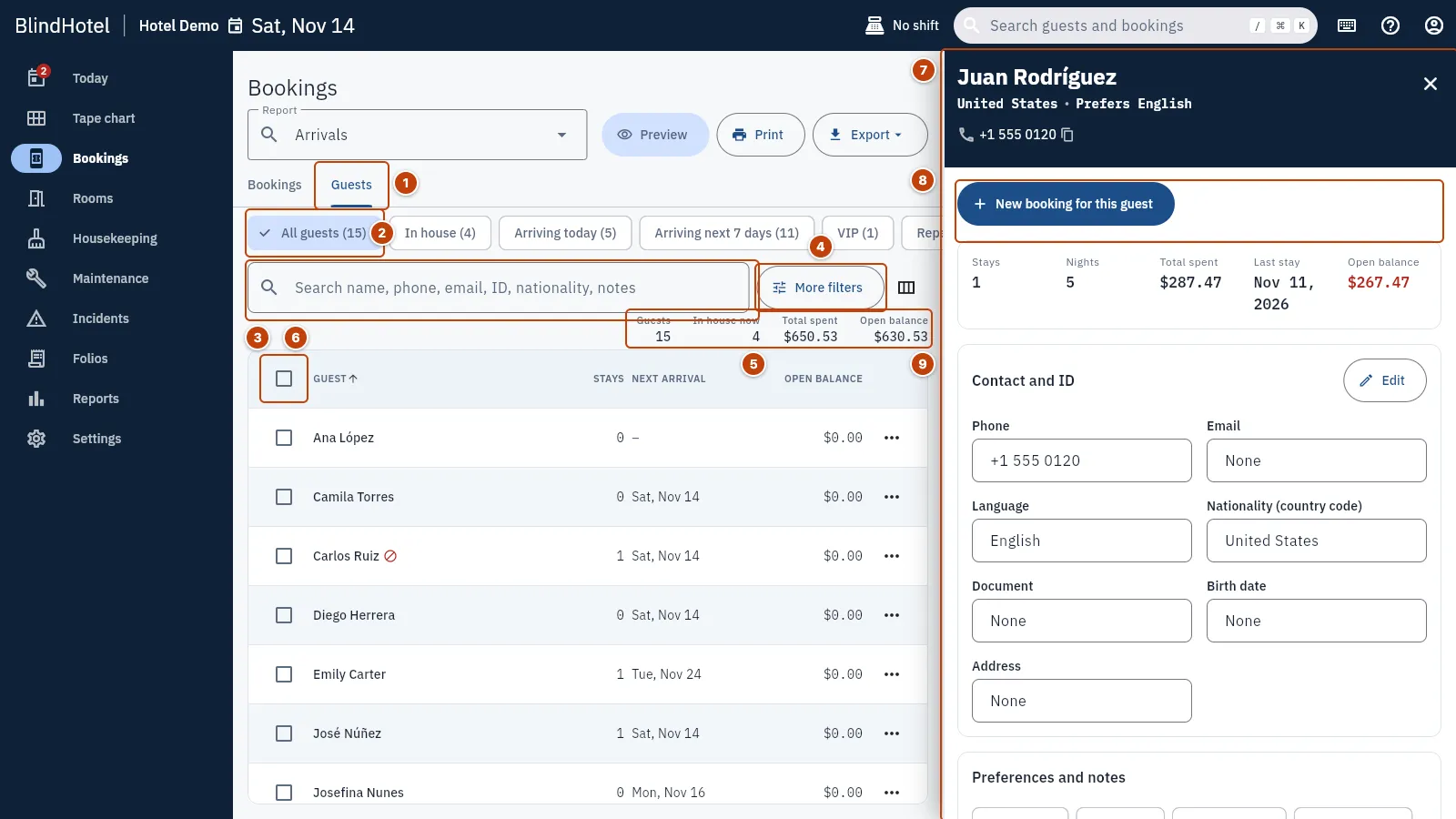
Parts of the screen
Section titled “Parts of the screen”- Tabs: Bookings and Guests. Guests is open. Bookings is the list of bookings. See The bookings list.
- Views: ready-made lists with their counts. With the guest panel open they are chips on top. With no panel they are a column on the left.
- Search: type a name, a phone, an email, an ID, a nationality or a word from the notes.
- More filters: opens the full set of filters. The columns button beside it chooses what the table shows.
- Summary: the figures of the list you see: Guests, In house now and, for roles that see money, Total spent and Open balance.
- The table: one row for each guest. The box at the top ticks every row. Tap a column heading to sort by it.
- A row: the guest’s name, phone, email, number of stays, last stay, next arrival and open balance. A line under the name says In house now. Tap the row to open the guest in the panel.
- The guest’s header and buttons: the name, the country and language, the email you can copy, and the buttons: New booking for this guest, and for owners and managers Mark as VIP and Blacklist.
- The guest’s page: under the buttons, a strip of numbers (Stays, Nights, Last stay and, for money roles, Total spent and Open balance), then Contact and ID, Preferences and notes, Tax details (only where the hotel invoices electronically), Stays and Documents.
Options and filters
Section titled “Options and filters”- Views: All guests, In house, Arriving today, Arriving next 7 days, VIP, Repeat guests (2+ stays), New in the last 30 days and Blacklisted. With open balance is for roles that see money. Birthdays this month is for roles that manage bookings.
- Save current filters as a view: keeps the search you have as a view of your own, saved for you at this property.
- More filters: nationality, language, arriving, number of stays, last stay, VIP, blacklisted, in house, has notes or preferences, who created the guest and, for money roles, with open balance. Show results applies them. Clear all empties the form.
- Clear filters: every filter in force is a chip. Remove one, or clear them all.
- Preferences and notes: tap what the guest likes (Quiet room, High floor, Early check-in, Late check-out), write what is worth remembering in Notes, and tap Save.
- Stays: the guest’s past and coming stays. Tap one to open its booking.
- Tax details: who the guest’s invoices are made out to (a tax number, or a passport and a country), saved once. Every invoice for this guest starts from here, and it can still be changed at check-out. The fields follow the country of the hotel. See Invoice a guest or a company.
- Documents: the receipts and registration cards issued for this guest. Each has Reprint and Share PDF.
Actions
Section titled “Actions”- New booking for this guest (Owner, Manager, Front desk, Night auditor): starts a booking with the guest already chosen. See The New booking form.
- Edit in Contact and ID (Owner, Manager, Front desk, Night auditor): corrects phone, email, language, nationality, document, birth date and address. If your country pack requires more about guests, a folded Registration details is in the form (sex, residence, place of birth, document dates). It is not there when nothing more is required.
- Save in Preferences and notes (Owner, Manager, Front desk, Night auditor): keeps the preferences and notes.
- Mark as VIP and Blacklist (Owner, Manager): each asks for a reason. Remove VIP and Remove from blacklist undo them.
- More actions (three dots on a row): Open profile, New booking for this guest, Copy phone and Copy email.
- Export CSV and Print list: when you tick rows, a bar says how many are selected and offers them. Clear selection unticks the rows.
Colours, icons and badges
Section titled “Colours, icons and badges”- A star and VIP by a name: a guest who gets special care.
- A red circle with a line, or Blacklisted, by a name: a guest on the blacklist. The panel shows the reason.
- In house now under a name: the guest is staying tonight.
- A red open balance is money the guest still owes.
- A number badge on More filters counts the filters in force.
- The outlined row is the guest open in the panel.
Phone and desktop
Section titled “Phone and desktop”- On a phone the guest opens as a full page, and each row is a card.
- On a computer the panel opens beside the list. Press / to jump to the search and Esc to close the panel.
Common questions
Section titled “Common questions”- How do I add a guest? You don’t, here. Guests are added with each booking, on the New booking form or the walk-in form.
- Why are the document number and the birth date hidden? Only roles that manage bookings see them.
- Why does a blacklisted guest show a warning when I book them? The blacklist is a warning. Only an owner or a manager can book that guest anyway, and the app asks for confirmation.
- Why is there no Total spent? Money figures are for roles that may see folios.