Screen guide
The New booking form
At a glance
- Purpose
- Make a booking and, if you want, take the deposit in the same step.
- Who uses it
- Owner
- Manager
- Front desk
- Night audit
- Where to find it
- Today, Booking; the tape chart; a guest's page; key B
The sheet where you make a booking for a guest: dates, rooms, guest and deposit on one page.
The screen
Section titled “The screen”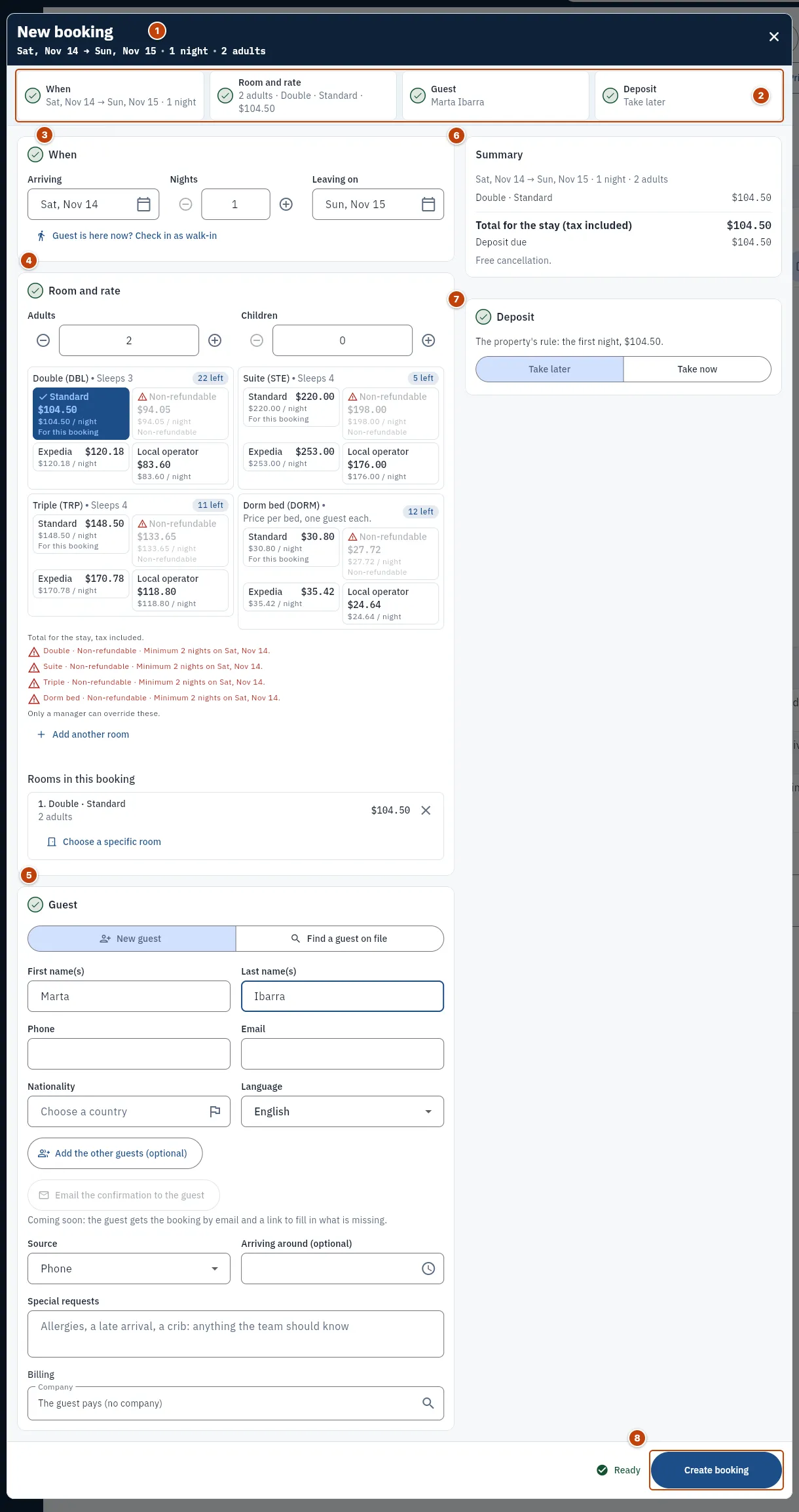
Parts of the screen
Section titled “Parts of the screen”- Header: the title New booking and, as you fill the sheet, the dates, the nights and the adults. Close it with the X or with Esc.
- Steps bar: one cell for each section: When, Room and rate, Guest and Deposit. A green check means the section is done. An amber exclamation mark means it needs something. Tap a cell to jump to that section.
- When: Arriving, Nights and Leaving on. Change the nights or the leaving day and the other follows. A booking can be up to 365 nights, and the arrival cannot be before today.
- Room and rate: set Adults and Children, then tap a rate under the room type you want. Each rate shows its price for the stay and, when few are left, “N left”. A rate marked “Non-refundable” cannot be cancelled for free. The plan that fits the booking’s Source or company is marked For this booking. Add more rooms with Add another room.
- Guest: choose New guest and type the name, phone and email, or choose Find a guest on file so the guest is not entered twice. Further down: Source, Arriving around (optional), Special requests and, for a company, the billing card.
- Summary: Total for the stay (tax included), Deposit due and one line on cancelling: “Free cancellation.” or “Non-refundable: cancelling costs the price of the stay.”
- Deposit: the hotel’s deposit rule in words, then Take later (the default) or Take now. With Take now the payment cards of the Take payment window appear here.
- Footer: “Still needed:” with the list of what is missing, or “Ready”. The main button stays off until nothing is missing. It reads Create booking, or Create booking and take with the amount when you take the deposit now.
Options and filters
Section titled “Options and filters”- Choose a specific room: by default the hotel picks a room when the guest arrives. Tap this to name one now.
- Add adults to book another room: a second room needs at least one adult for it. The sheet tells you when you must add adults first.
- Rooms in this booking: the list of rooms already added. When you take away adults and there are two or more rooms, the sheet asks which room you remove.
- Registration details: a folded section that shows only when your country pack asks for it. It holds the purpose of the trip and the children’s ages. The guests inherit the purpose, and you can change it for one guest at check-in.
- Add the other guests (optional): one row for each other guest, with a child switch, an ID type and number, and the room they sleep in.
- Email the confirmation to the guest: shown as coming soon.
- Book anyway (override the rate’s restrictions): appears when a rate refuses your dates. Only an Owner or a Manager can turn it on, and then Manager’s reason (required) asks why. The reason is saved with the booking.
Actions
Section titled “Actions”- Create booking (Owner, Manager, Front desk, Night auditor): makes the booking. A message says “Booking #N created” and offers Open booking and Print confirmation.
- Create booking and take (Owner, Manager, Front desk, Night auditor): makes the booking and takes the deposit in one step. If the answer is lost, the sheet keeps the request. See A payment was not confirmed.
- Take now (Owner, Manager, Front desk, Night auditor): needs the permission to take payments. Without it, only Take later is offered.
- Change guest (Owner, Manager, Front desk, Night auditor): drops the guest you picked and goes back to the two choices.
- Book anyway (Owner, Manager): books a guest who is on the blacklist. Anyone else is told “Only a manager can book this guest.”
- Guest is here now? Check in as walk-in: a link at the top for a guest standing at the desk. It opens the walk-in form.
- Discard: if you close the sheet after adding a room, it asks “Discard this booking? Nothing is booked yet.”
Colours, icons and badges
Section titled “Colours, icons and badges”- Green check in the steps bar: the section is done.
- Amber exclamation mark: the section needs something. The footer names it.
- Red warning triangle: a rate that cannot be booked for these nights, with the reason beside it.
- Red block icon: the guest on file is blacklisted. Only an Owner or a Manager can book anyway.
- Amber note under a payment: the guest will be in credit, or money is still left to assign.
Phone and desktop
Section titled “Phone and desktop”- On a phone the sheet fills the screen and its sections follow one another in the order of the steps bar.
- On a wide screen, from about 1000 px, there are two columns: When, Room and rate and Guest on the left; Summary and Deposit on the right.
- Keys: B opens the sheet from anywhere (N works too). Esc closes it. Ctrl+K or Cmd+K finds “New booking”.
Common questions
Section titled “Common questions”- Why can’t I see a rate or a room? Nothing of that type is free on one of the nights, or a restriction applies (closed to arrival, minimum stay). The line under the rate says which.
- Why is the button grey? The footer says what is still needed. Fix those items and it turns on.
- Why don’t I see Take now? Your role cannot take payments. Make the booking with Take later; a colleague takes the deposit from the booking.
- Can I book for a date in the past? No. The arrival can be today or later, up to two years ahead.
- I closed the sheet by mistake. If you had added a room, it asks before discarding. Choose to keep working.