Screen guide
Seasons
At a glance
- Purpose
- Give a range of nights its own price for each room type, without touching the normal price.
- Who uses it
- Owner
- Manager
- Where to find it
- Menu, Settings, then Prices, in step 2, Price changes by date
Nights that have their own prices, like a high season or a festival week.
The screen
Section titled “The screen”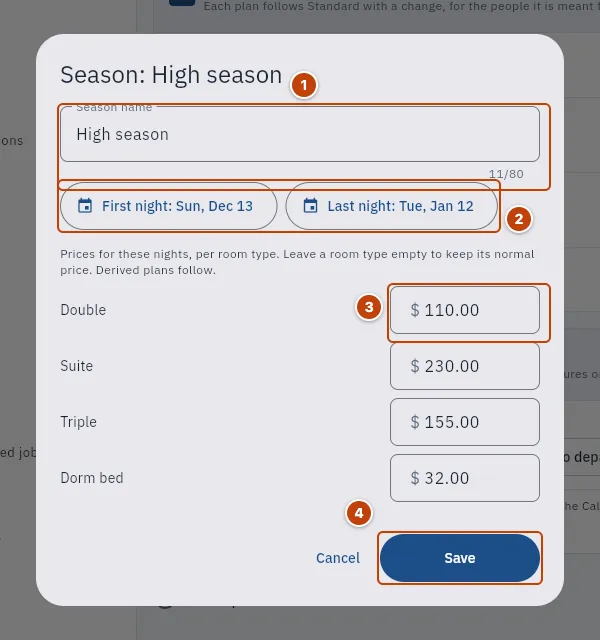
Parts of the screen
Section titled “Parts of the screen”- Season name: what you call it, for example High season.
- First night and Last night: the nights it covers. The last night is included.
- A price for each room type: the price per night in that season. If there is more than one base plan, each has its own prices under its name.
- Save: keeps the season. Cancel closes the window.
The list of seasons is in step 2 of the same page. Each season shows its name and its dates, and Add season opens this window empty.
Options and filters
Section titled “Options and filters”- Edit: opens a season in the same window.
- Archive: hides a season you no longer use. Its prices stop applying. Restore brings it back.
Actions
Section titled “Actions”- Add season: starts a new season.
- Save: saves the name, the dates and the prices.
- Cancel: closes the window and changes nothing.
- Set normal prices (step 1) and Weekday prices (step 2), or Normal prices… and Weekday prices… in the More actions menu of a plan. A season price replaces the normal price in those nights. A weekday price sits on top of it: it either replaces the price or adds an amount to it.
Colours, icons and badges
Section titled “Colours, icons and badges”- A season that is archived shows the word archived after its name.
- In the Calendar, the nights of a season show the season price, and a derived plan follows it.
Phone and desktop
Section titled “Phone and desktop”- On a phone the window is a full page and the prices are one under the other.
Common questions
Section titled “Common questions”- What if a room type is left empty? It keeps its normal price in those nights.
- What if two seasons cover the same night? The shorter season wins. A festival week inside a long high season gets the festival prices.
- Do derived plans change too? Yes. A plan derived from Standard follows the season price of Standard.