Screen guide
The Settings screen
At a glance
- Purpose
- Find and change how the hotel works: its details, rooms, prices, rules, team and security, and your own preferences.
- Who uses it
- All roles
- Where to find it
- Menu, Settings (on a phone: More, then Settings)
The place where you set up the hotel and change how it works: eleven groups of pages, and each person sees only the ones their role can use.
The screen
Section titled “The screen”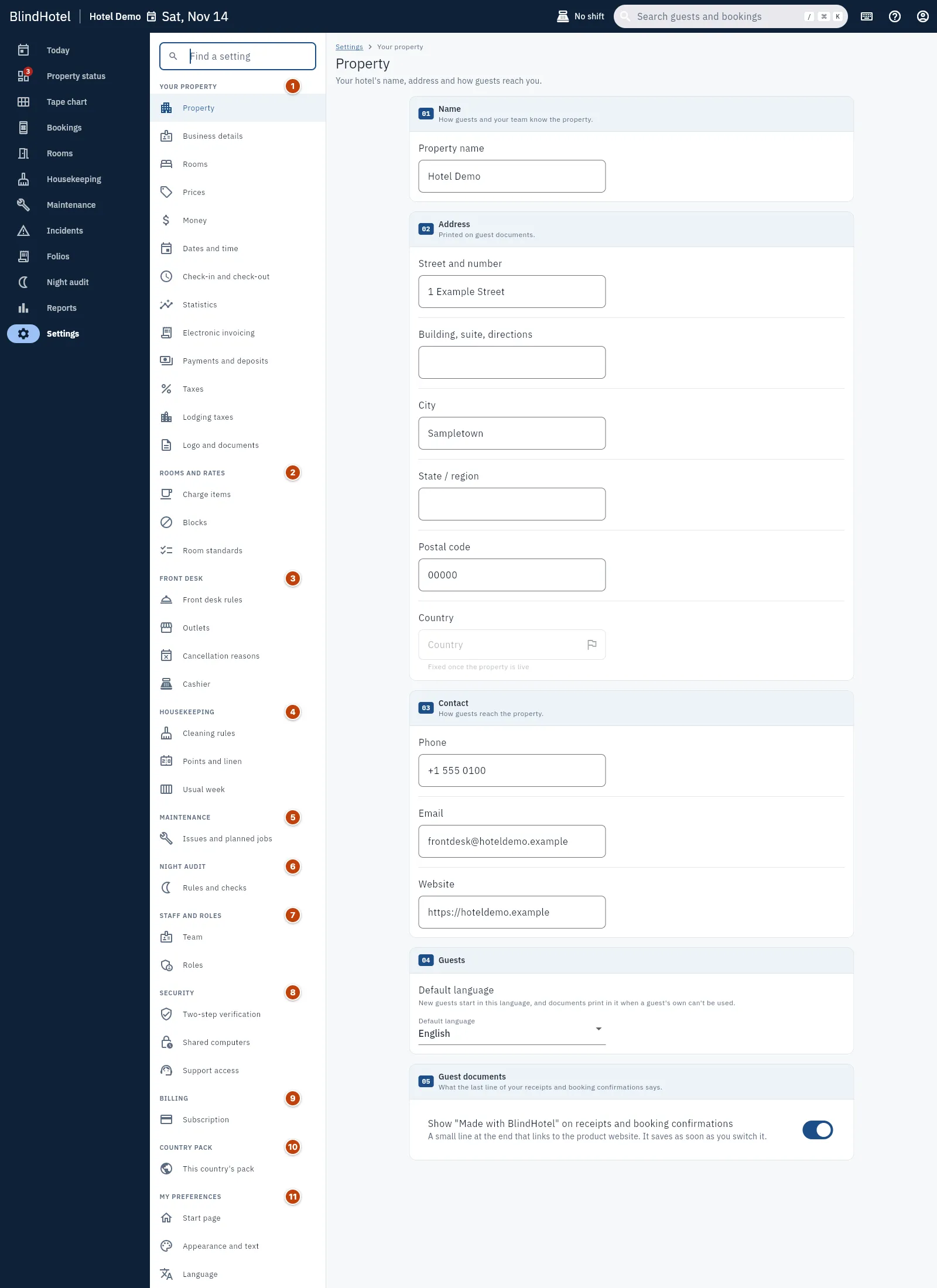
Parts of the screen
Section titled “Parts of the screen”The menu is a list of groups. Each group is a small grey heading with its pages under it. They come in this order, and a group shows only when you can use one of its pages.
- Your property: the hotel itself, in the order of the quick setup. Property (name, address, contact), Business details (legal name and tax ID), Rooms, Prices, Money, Dates and time, Check-in and check-out, Statistics (type of property, official category, registry numbers, closing periods and the monthly staff count, for the tourism statistics), Payments and deposits, Taxes, Logo and documents. The Owner and the Manager use all eleven. The Front desk, Night auditor and Accountant see some of them, to read.
- Rooms and rates: Charge items (minibar, laundry, parking and other extras), Blocks (rooms out of order or held back), Room standards (what each room type is made up with). The Housekeeping supervisor and Maintenance use Blocks.
- Front desk: Front desk rules (what the desk may do alone and what needs a manager), Outlets (restaurant, bar, spa), Cancellation reasons (the list the desk picks from; the Night auditor reads it too), Cashier (drawers, counts and what a shift starts with; the Night auditor and the Accountant read it).
- Housekeeping: Cleaning rules (how often rooms with guests staying on are cleaned), Points and linen (what each kind of task is worth), Usual week (the days and hours each person normally works). The Housekeeping supervisor reads these three pages.
- Maintenance: Issues and planned jobs: what can be reported, where, and the jobs that open by themselves.
- Night audit: Rules and checks: when the day closes, by hand or on its own. The Night auditor reads it.
- Staff and roles: Team (invite people, choose their roles and properties) and Roles (what each role lets a person do, to read). Owner and Manager only.
- Security: Two-step verification (everyone), Shared computers (Owner and Manager; front-desk computers lock themselves when nobody uses them) and Support access (Owner only).
- Billing: Subscription: your plan, what you pay, the invoices, and the buttons to change the plan, download your data or cancel. Owner only. It is the one page that still opens when the hotel is archived.
- Country pack: This country’s pack: whether the pack of your country was applied and what it adds. It is only to read.
- My preferences: Start page (the page that opens after you sign in), Appearance and text, Language and My account. Everyone has these four, and they change only you.
Options and filters
Section titled “Options and filters”- Find a setting: the box at the top of the menu. Type a word such as “tax” or “deposit”. The list shows every page and every single setting that matches, with its group. Every word you type must match; capitals and accents do not matter. Tap a result: the page opens and the setting lights up for a moment. The x (Clear the search) brings the menu back. If nothing matches, the list says so.
- Setup wizard: the first line of the menu, only while the hotel is still being set up and you can change settings. It opens the full setup, step by step. The short path is the quick setup: See The quick setup.
- The open page: on a wide screen the menu stays on the left and the page opens beside it, highlighted in the menu. At first it is Property for people who can change settings, and Appearance and text for everyone else.
- The top search: the one in the top bar (press / or Ctrl and K) also finds settings pages.
Actions
Section titled “Actions”- Save changes (Owner, Manager, and any role that may change that page): on a page made of settings, a bar appears at the bottom as soon as you change something: “1 unsaved change”, Discard and Save changes. Nothing is stored until you tap Save changes.
- Discard and leave (anyone): if you leave a page with changes, the app asks Leave without saving?. Stay keeps you on the page; Discard and leave drops the changes.
- Set up (Owner, Manager): once the hotel is live, a notice at the top of a page says you can see it but must turn on two-step verification to change it. Set up takes you there and brings you back.
- Appearance and text and Language (everyone) apply at once, with no save. Pages made of lists, such as Rooms, Taxes or Team, have their own buttons.
Colours, icons and badges
Section titled “Colours, icons and badges”- A page highlighted in the menu is the one that is open.
- Each page has a small icon, such as a bed for Rooms or a percent sign for Taxes. It only helps you find the page.
- A notice box with an eye icon at the top of a page means you can look but not change. It says why.
- A setting that lights up for a moment is the one you were looking for.
- The bar at the bottom of a page counts your unsaved changes.
Phone and desktop
Section titled “Phone and desktop”- On a screen narrower than 1000 pixels, Settings is the menu on its own. Tap a page and it fills the screen, with an arrow at the top left that goes back to the menu.
- Settings has no keys of its own. Press / or Ctrl and K (Command and K on a Mac) to open the top search; press ? to see all the shortcuts. They do not work while you type in a field.
Common questions
Section titled “Common questions”- Why can’t I see a page my colleague sees? Each role sees only the pages it can use. Ask an Owner or a Manager to look, or to change your role.
- Why can’t I change a setting? The notice at the top says why: either your role may only read the page, or two-step verification is still to set up.
- Where is Support access? Only the Owner sees it, under Security. See Give support access.
- Where did the Setup wizard go? It shows only while the hotel is being set up. Afterwards use the pages of the groups.
- I left a page without saving. Is the change lost? The app asks first. If you choose Discard and leave, yes.