Screen guide
The bookings list
At a glance
- Purpose
- Find a booking by guest, number, date or status, and act on it from the side panel.
- Who uses it
- Owner
- Manager
- Front desk
- Night audit
- Housekeeping
- Where to find it
- Menu, Bookings, then the Bookings tab
Find any booking, open it, and see everything about it in one panel.
The screen
Section titled “The screen”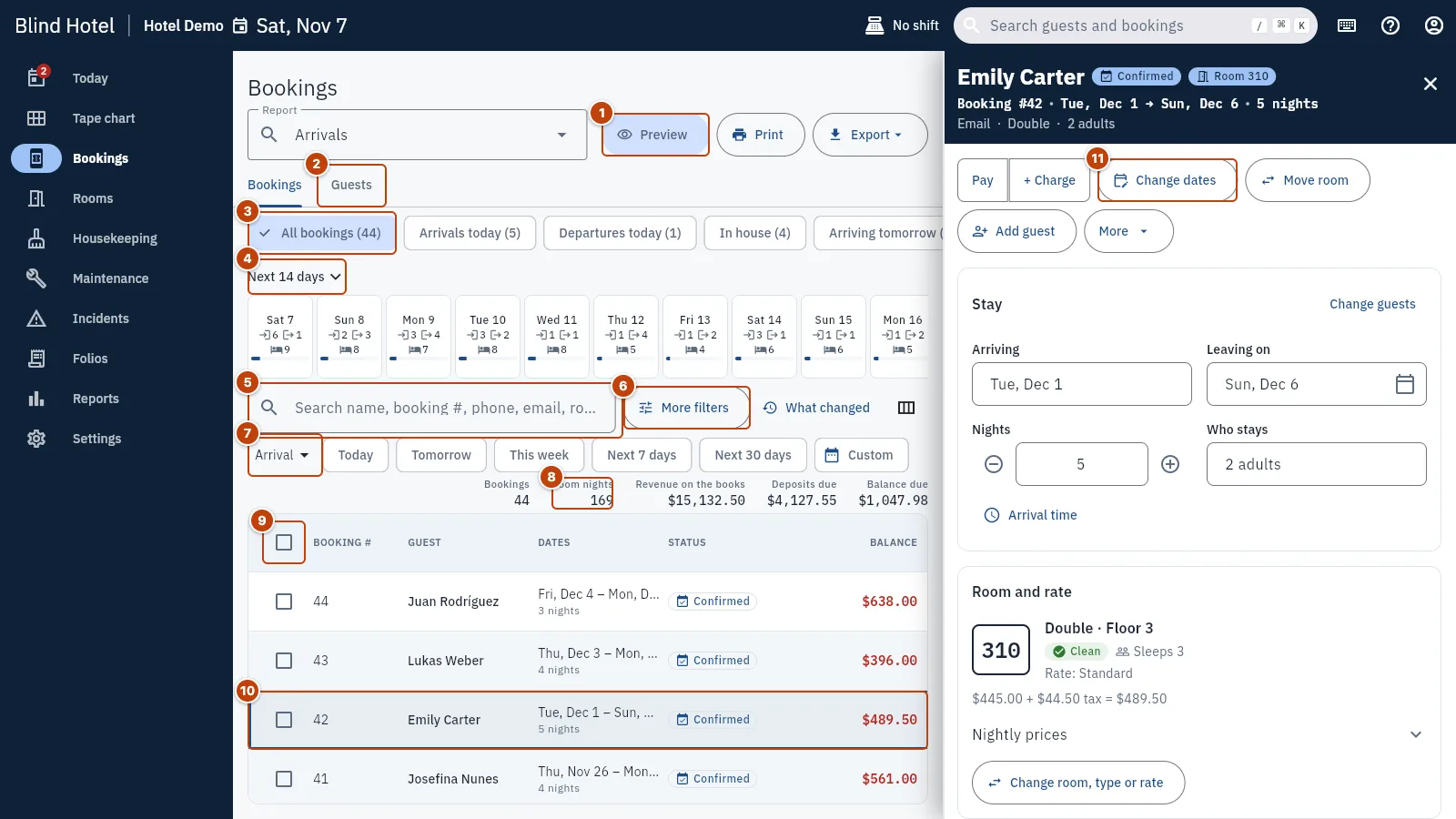
Parts of the screen
Section titled “Parts of the screen”- Reports row: a line under the title bar. Pick a report in the Report list, then Preview, Print or Export it without leaving the page. A role that may open no report sees no row.
- Tabs: Bookings and Guests. Guests is the list of people. See Guests.
- Views: ready-made lists, each with a count. With the panel open they are chips on top. With no panel they are a column on the left.
- Next 14 days: one box for each coming day, with its arrivals, its departures and how much is sold. Tap a day to list the bookings staying on it. Tap the title to fold the strip.
- Search: type a name, a booking number, a phone, an email or a room.
- More filters: opens the full set of filters. Beside it are What changed and the columns button.
- Date menu and chips: choose which date the chips cut by, then Today, Tomorrow, This week, Next 7 days, Next 30 days or Custom.
- Summary: the figures of the list you see: Bookings, Room nights and, for roles that see money, Revenue on the books, Deposits due and Balance due.
- The table: one row for each booking. The box at the top ticks every row. Tap a column heading to sort by it.
- A row: the booking number, the guest, the dates, the room, the status, the total and the balance. Tap it to open the booking in the panel.
- The side panel: the booking in full. The header shows the guest, the status, the room, the booking number, the dates and the nights. Under it are the buttons your role allows. Then come the cards Stay, Room and rate, Guests, Folio (if you may see money), Billing, Notes and special requests and History.
Options and filters
Section titled “Options and filters”- Views: All bookings, Arrivals today, Departures today, In house, Arriving tomorrow, Next 7 days, Next 30 days, New in the last 24 h, Changed in the last 24 h, Cancelled and No-shows. Roles that see money also have Deposit not paid and Balance due.
- Save current filters as a view: keeps the search you have as a view of your own, saved for you at this property, so it follows you to any computer. A saved view has a menu with Pin to top, Rename and Delete.
- Date: Arrival, Departure, Staying on or Created.
- More filters: status, source, room type, rate plan, VIP, special requests, who created the booking and, for money roles, balance due and deposit not paid. Show results applies them. Clear all empties the form.
- Clear filters: every filter in force is a chip. Remove one, or clear them all.
- What changed: the changes of the last 14 days, with Mark all as seen. A red number on Bookings in the menu counts what changed since you last looked.
- Columns and Row height: choose the columns and Comfortable or Compact rows. They are saved for you at this property.
- Report: the list in the Reports row. Under This department are the reports made for this page, and under All reports the others your role may open, each group in alphabetical order. Type in it to narrow the list: the headings remain over what is left. The report you pick is kept for you on this page, on any computer. A report opened from here starts on this month. A list of one day, such as Arrivals, starts on the business date. Print and Export use the same dates. For other dates, tap Preview and change them there.
Actions
Section titled “Actions”- Check in, Check out (Owner, Manager, Front desk, Night auditor): first buttons of the panel, when the stay is due or in the house.
- Pay and + Charge (Owner, Manager, Front desk, Night auditor): take a payment or add a charge. See The payment window.
- Change dates, Move room (or Assign room) and Add guest (Owner, Manager, Front desk, Night auditor): change a stay that is not over.
- More (menu of the panel): Cancel booking, Cancel stay, No-show, Print confirmation, Share confirmation PDF, Print registration card, Take room back, Undo check-in, Guest had left. It only offers what the booking allows now. A cancelled or no-show booking offers Reinstate.
- More actions (three dots on a row): Open, Check in, Take payment, Print confirmation and Copy booking number.
- Export CSV and Print list (everyone who reads the list): when you tick rows, a bar says how many are selected and offers them. Clear selection unticks the rows.
- Assign best rooms (Owner, Manager, Front desk, Night auditor): in that bar, when some ticked bookings have no room yet.
- Preview, Print and Export (Owner, Manager, Front desk, Night auditor, Accountant, and the Housekeeping supervisor for the housekeeping reports): act on the report shown in the Report list. Preview opens it in a large window with its own dates. Print asks the language of the paper first. Export has two choices, CSV file and Excel file. See The report preview.
Colours, icons and badges
Section titled “Colours, icons and badges”- Status chips show a word and an icon, such as Confirmed, In house, Checked out, Cancelled and No-show.
- A balance in red is a Balance due.
- In the panel’s header, a star and VIP, or Blacklisted, mark a VIP or a guest on the blacklist.
- A bar under a day in Next 14 days shows how much is sold that night.
- The outlined row is the booking open in the panel.
Phone and desktop
Section titled “Phone and desktop”- On a phone or a tablet the booking opens as a full page. On a phone each row is a card. The views are chips on a narrow screen, and while a booking is open beside the list.
- On a computer the panel opens beside the list. Press / to jump to the search, and Esc to close the panel.
- B starts a new booking from anywhere, when you are not typing.
- On a phone the Report list takes the full width, and Preview, Print and Export wrap onto a line under it.
Common questions
Section titled “Common questions”- Why can’t I find a booking? Check the view and the chips: a view such as Arrivals today hides the rest. Choose All bookings and Clear filters.
- Why is there no Balance due view or column? They show money. Only roles that may see folios have them.
- Where is the New booking button? It is not on this list. Start one from Today, press B, or choose free nights on the tape chart. See The tape chart.
- Why are some buttons missing in the panel? The booking’s state decides: a stay that is over cannot change, and a role that does not manage bookings cannot edit.
- Why is there no Reports row? Your role may open no report, so the row is hidden. A Housekeeper may open none. The Housekeeping supervisor opens only the housekeeping reports, and Maintenance only the maintenance reports, so their row lists just those. Ask a manager if you need more.