Screen guide
The Maintenance screen
At a glance
- Purpose
- Report what needs fixing, follow each issue until it is fixed, and take a room off sale while it is repaired.
- Who uses it
- Owner
- Manager
- Front desk
- Night audit
- Housekeeping
- Maintenance
- Where to find it
- Menu, Maintenance. On a phone, More, then Maintenance.
Maintenance lists what is broken or worn in the rooms and the common areas, who is fixing it and how far along it is.
The screen
Section titled “The screen”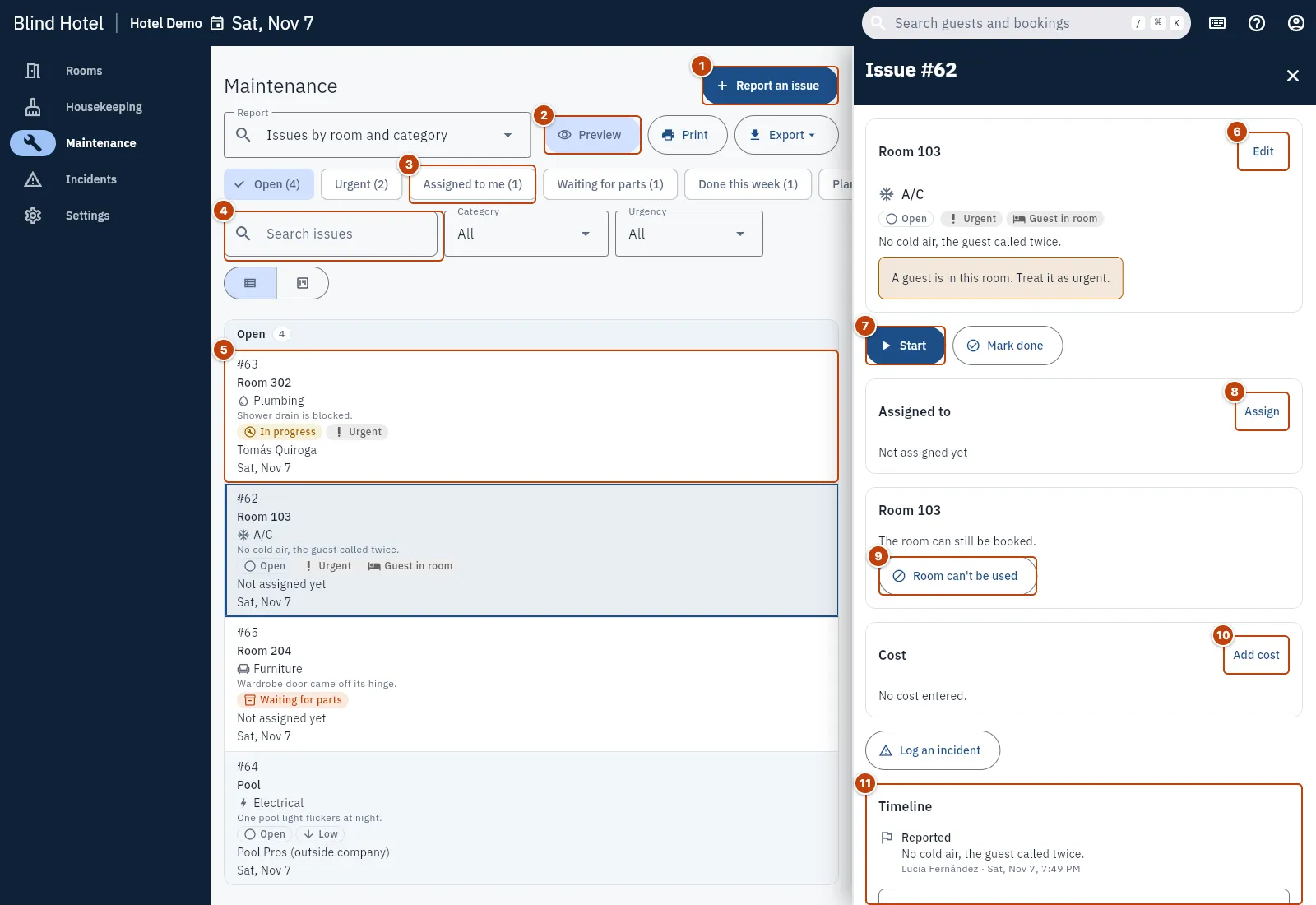
Parts of the screen
Section titled “Parts of the screen”- Report an issue: the button on top. Whoever may report sees it.
- Reports row: a line under the title bar. Pick a report in the Report list, then Preview, Print or Export it without leaving the page. A role that may open no report sees no row.
- Views: the lists of issues, each with how many it holds: Open, Urgent, Assigned to me, Waiting for parts, Done this week and, for the maintenance team, Planned.
- Search and filters: Search issues, the Category and Urgency menus, and Clear filters when one is set.
- Issue row: the number, where it is, what is wrong, its status and urgency, who has it and the day it was reported. Tap it to open the issue beside the list.
- Edit: on the issue’s first card, with the place, the kind of problem, the status, how urgent it is and the note.
- Start: the next step of the issue. It changes with the status: Start, Waiting for parts, Mark done, Verify, Resume or Reopen.
- Assign: on the Assigned to card. It says who has the issue, or “Not assigned yet”.
- Room can’t be used: on the room’s card, for an issue in a room. It takes the room off sale.
- Add cost: on the Cost card, to save what the parts and the labour cost.
- Timeline: everything that happened to the issue, oldest first, with a box to add a note.
Options and filters
Section titled “Options and filters”- Views: Open holds issues that are open, in progress or waiting for parts. Urgent holds those marked urgent and those with a guest in the room. Assigned to me holds your own. Done this week holds the issues finished in the last 7 days.
- Search issues: type part of a room code, an area name or a word of the note.
- Category: All, or one kind of problem.
- Urgency: All, Low, Normal or Urgent.
- List and board: two buttons beside the filters, only in Open, Urgent, Assigned to me and Waiting for parts. The board has a column for Open, In progress and Waiting for parts. Tap a card to open it. Cards do not drag.
- Planned: the jobs that open an issue by themselves every few days or months, with when each is next due. Check now opens the ones that are due. Manage in Settings goes to where they are made.
- Save current filters as a view: a button under the views, to keep a search with its filters as a view of its own. The View options menu of a saved view has Pin to top, Rename and Delete.
- Report: the list in the Reports row. Under This department are the reports made for this page, and under All reports the others your role may open, each group in alphabetical order. Type in it to narrow the list: the headings remain over what is left. The report you pick is kept for you on this page, on any computer. A report opened from here starts on this month. A list of one day, such as Arrivals, starts on the business date. Print and Export use the same dates. For other dates, tap Preview and change them there.
Actions
Section titled “Actions”- Report an issue (Owner, Manager, Front desk, Night auditor, Housekeeping supervisor, Housekeeper, Maintenance): choose Room or Area and where, set the Urgency, add a Note (optional) and tap what is wrong, such as A/C or Plumbing. That tap files the report. A message says “Issue #3 reported.”
- Edit (Owner, Manager, Front desk, Housekeeping supervisor, Maintenance): changes the urgency, the Category and the note, then Save. It is not offered once the issue is verified.
- Start (same roles): the issue is in progress. Waiting for parts asks Which part? (optional). Resume goes on after the wait.
- Mark done (same roles): asks What was done? (optional). If the room was off sale for this issue, a message says “Done. Room 103 goes to housekeeping, then back on sale.”
- Verify (Owner, Manager, Front desk, Housekeeping supervisor, Maintenance, and the person who reported it): confirms it is really fixed.
- Reopen (same roles as Edit): asks Why? (optional) and brings a finished issue back.
- Assign and Change (Owner, Manager, Front desk, Housekeeping supervisor, Maintenance): choose Not assigned yet, a person who works on maintenance here, or Outside company and its Company name, then Save.
- Room can’t be used (Owner, Manager, Front desk, Housekeeping supervisor, Maintenance): choose First night and Back in use, add a Reason (optional) and confirm. The room goes out of order for those nights.
- Add cost (same roles as Edit): the Parts and the Labour, then Save. The card then shows each amount and the total. Once a cost is saved the button reads Edit.
- Add note and Action taken (same roles as Edit; the reporter can add notes): under Add to the timeline. Use Action taken for what was done.
- Log an incident (whoever may record incidents): under the issue, with its room or area filled in. See Report an incident.
- Preview, Print and Export (Owner, Manager, Front desk, Night auditor, Maintenance): act on the report shown in the Report list. Preview opens it in a large window with its own dates. Print asks the language of the paper first. Export has two choices, CSV file and Excel file. See The report preview.
Colours, icons and badges
Section titled “Colours, icons and badges”- The status is a chip with a sign and a word. Open is grey. In progress, Waiting for parts, Done and Verified take the colours of the rooms: being cleaned, dirty, clean and inspected.
- Urgent is a red chip with an exclamation mark. Low is a grey chip with a down arrow. A normal issue shows no chip, so the urgent ones stand out.
- Guest in room is a red chip with a bed. It shows while the issue is active, and the card adds “A guest is in this room. Treat it as urgent.”
- Out of order with a wrench means the room is off sale for this issue.
- “Opened by a planned job.” appears on an issue that a planned job made.
Phone and desktop
Section titled “Phone and desktop”- On a phone, the views are a row of chips on top, the category and urgency menus wait behind one Filters button, and the rows fold into small cards. An issue opens as a page of its own, with the same cards and buttons.
- On a computer, the issue opens in a panel on the right. The views are a column on the left, or chips on top while an issue is open.
- On a phone the Report list takes the full width, and Preview, Print and Export wrap onto a line under it.
Common questions
Section titled “Common questions”- Why don’t I see Start or Assign? They are for the maintenance team. If you can only report, you see your own issues and can verify them once they are done.
- Why is Room can’t be used missing? It is only for an issue in a room, not an area, while the issue is not done, and for who may take rooms off sale.
- Why does the room still sell? An issue does not take a room off sale by itself. Use Room can’t be used.
- Why does an issue say Guest in room? The room has a guest in it. It counts as urgent and goes to Urgent.
- Where are the planned jobs? In the Planned view. Add or change them in Settings.
- Why is there no Reports row? Your role may open no report, so the row is hidden. A Housekeeper may open none. The Housekeeping supervisor opens only the housekeeping reports, and Maintenance only the maintenance reports, so their row lists just those. Ask a manager if you need more.