Screen guide
The Support access screen
At a glance
- Purpose
- Give support a read-only look at your hotel for 24 hours, take it back at any time, and see every screen support opened.
- Who uses it
- Owner
- Where to find it
- Settings, then Security, then Support access
The page where the owner lets our support team look at the hotel for 24 hours, takes that back, and reads what support opened.
The screen
Section titled “The screen”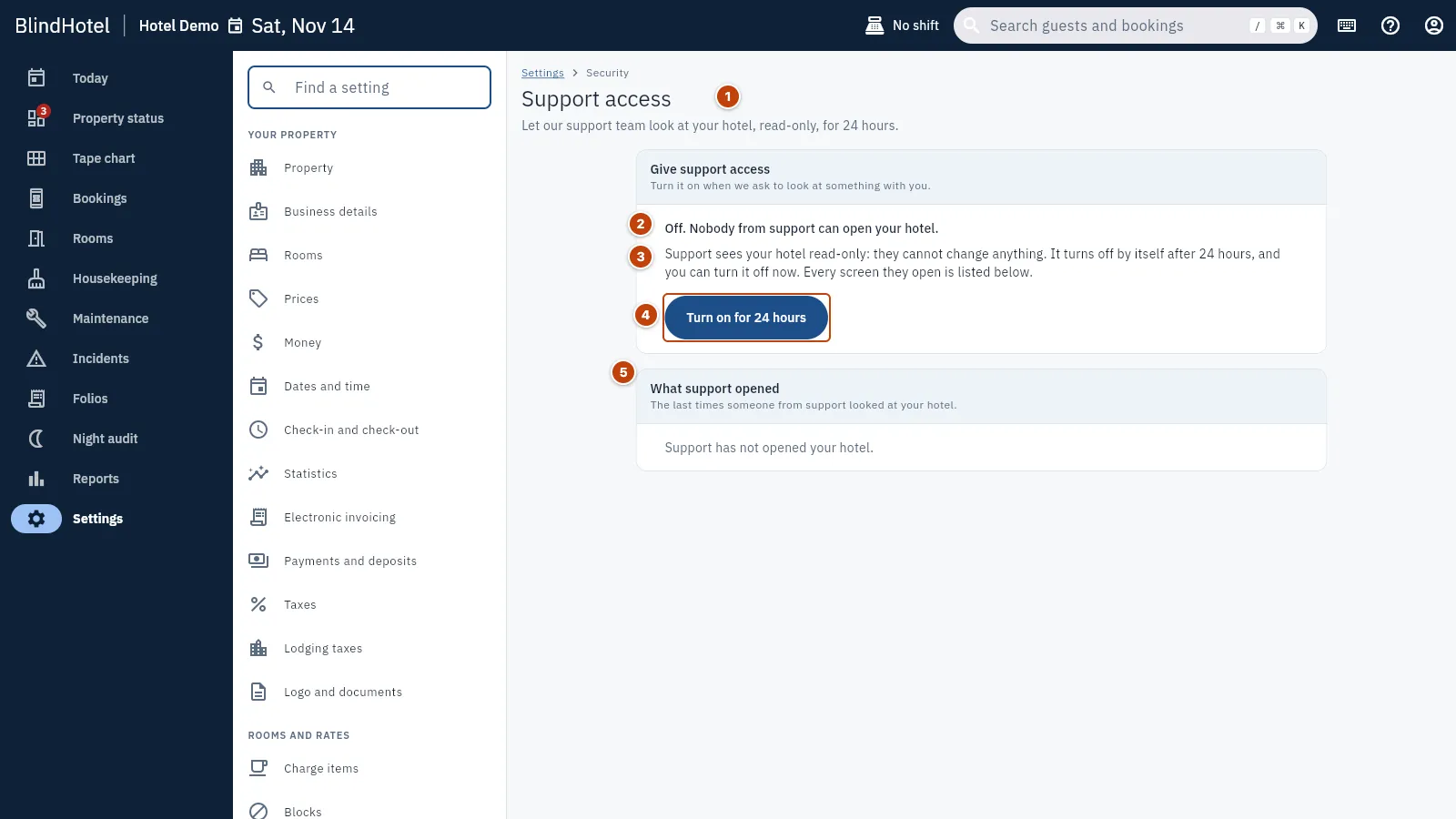
Parts of the screen
Section titled “Parts of the screen”- Page header: the trail Settings, then Security, the title Support access and one line that says what the page is for. On a narrow screen it has an arrow back to the Settings menu.
- State line: the first line of the card Give support access. It says Off. Nobody from support can open your hotel. or “On until” and the day and time it ends.
- What it allows: a short text. Support sees your hotel read-only and cannot change anything. It turns off by itself after 24 hours, you can turn it off now, and every screen support opens is listed below.
- The button: Turn on for 24 hours while it is off, and Turn off now while it is on. If the app refuses, a message shows just above the button and says why.
- What support opened: the card at the bottom. It lists the last times someone from support looked at your hotel, newest first, each with its day and time. A line says who opened your hotel, which screen they looked at, or that they closed the view. Until then it says Support has not opened your hotel.
Options and filters
Section titled “Options and filters”- There are no filters. The page reads the present state and the last 50 lines of the log each time you open it.
Actions
Section titled “Actions”- Turn on for 24 hours (Owner): gives support a read-only look from now for 24 hours. It needs your sign-in with the two-step code. The app saves who gave it and when.
- Turn off now (Owner): takes the access back at once. Support loses the view in the same moment, and the state line says Off.
- Close support view (support, not a role of your hotel): a button on the banner that support sees. It ends their view and writes “closed the view” in your log.
Colours, icons and badges
Section titled “Colours, icons and badges”- The page uses no colour for its meaning. The state is said in words: Off, or “On until” with the time.
- The banner support sees is a notice box with an eye icon and the words “Support view of” your hotel’s name, “read-only”. You never see it on your own screen.
Phone and desktop
Section titled “Phone and desktop”- On a screen narrower than 1000 pixels (a phone or a tablet) the page fills the screen, with an arrow back to the Settings menu. Nothing else changes.
- The page has no keys of its own.
Common questions
Section titled “Common questions”- Why can’t I see this page? Only the owner of the hotel sees it. A manager or any other role does not. Ask the owner.
- Does support see my guests? Only while it is on, and only to look: they cannot change anything, and guest ID documents stay hidden. While it is off they see account facts and counts only, such as the plan and how many bookings.
- What if I forget to turn it off? It turns off by itself after 24 hours.
- The button says “Verify with your authenticator app first.” What do I do? Turning it on or off needs your two-step sign-in. Set it up, then try again: See Protect your account.
- Do I see the banner when support looks? No. The banner is on support’s screen. You see their visit in the log.